Editing Documents
Change file names and folder locations at any stage – before or after filing.
Written By Valentin from Filently
Last updated 8 months ago
You Can Always Make Changes
Filently does not lock you into the AI's decisions. Whether a document is awaiting review or already filed, you can edit the filename and folder location at any time. Changes are applied directly in your Google Drive. Filently renames and/or moves the actual file.
Editing During Review (Awaiting Review)
When a document is in "Awaiting Review" status, you can adjust the suggestion before accepting it:
Edit the filename – Click on the filename field in the filing dialog and type your changes.
Choose a different folder – Pick from the alternative suggestions or browse your full folder structure.
Create a new folder – If no existing folder fits, create one directly from the filing dialog.
Once you are happy with the name and folder, click Accept to file the document.
For more on the review process, see Reviewing Documents .
Editing After Filing (Filed)
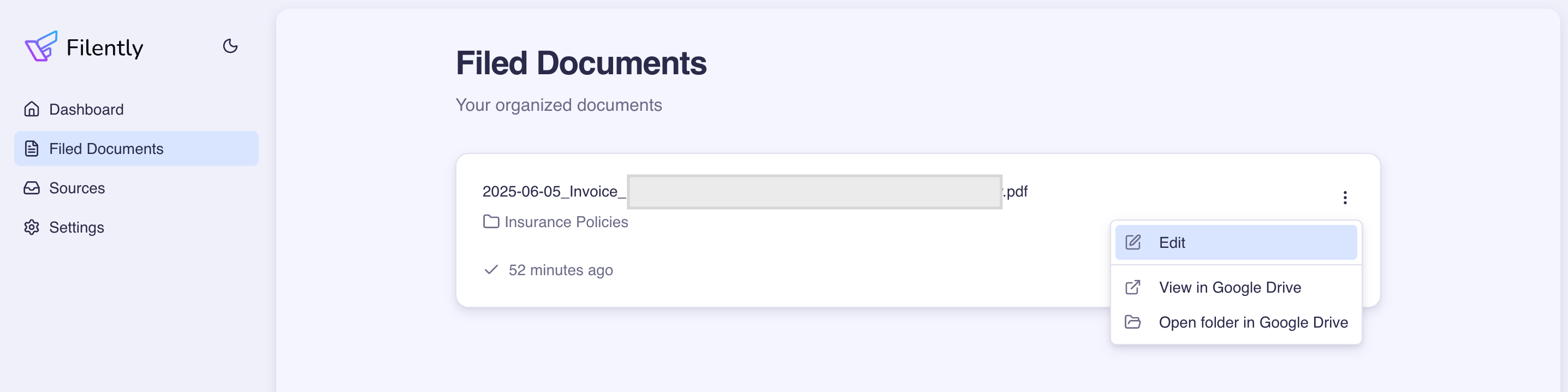
Already filed a document but need to make a change? No problem. Here is how:
Find the document on your Dashboard or Documents page.
Click on the document to open it.
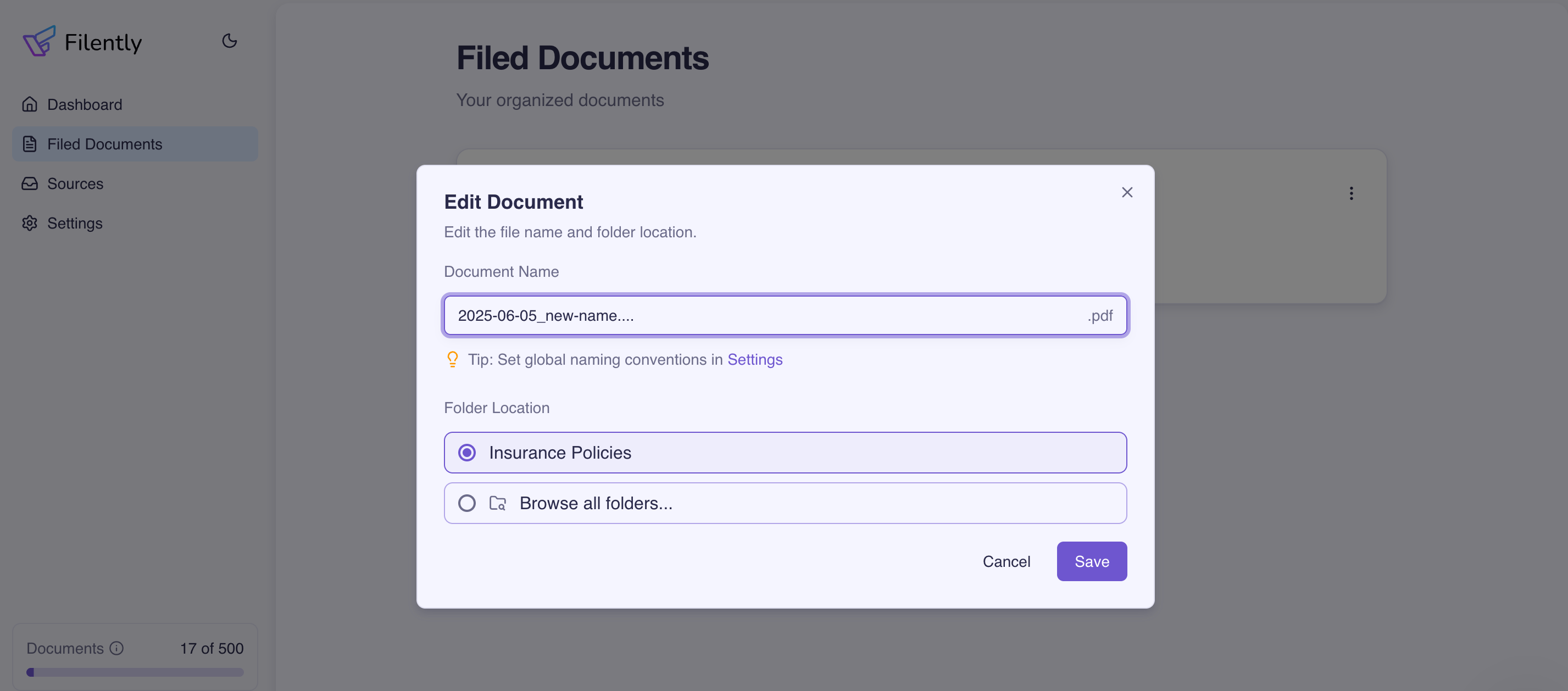
Click Edit.
Make your changes:
Change the filename – Update the name and the file will be renamed in Google Drive.
Move to a different folder – Select a new folder and the file will be moved in Google Drive.
Click Save.
Your changes take effect immediately in Google Drive.
Editing During Setup (Collecting Phase)
If you are still in the initial setup phase where Filently is learning your folder structure, editing works slightly differently:
You can edit the filename.
You cannot change the folder yet, since folder filing happens after your structure is created.
Once setup is complete and your folder structure is in place, all collected documents will be processed and you will be able to review or edit their folder assignments.
What Happens in Google Drive
Every edit you make in Filently is reflected in your Google Drive:
Rename – The actual file in Google Drive is renamed to match your new filename.
Move – The file is moved from its current folder to the new one you selected.
You do not need to open Google Drive separately. Filently handles the changes for you.
Related Articles
Still need help? Ask the team