Google Drive Permissions Explained
Understand exactly what access Filently has to your Google Drive – and what it does not.
Written By Valentin from Filently
Last updated 8 months ago
Why Filently Needs Google Drive Access
Filently works directly with your Google Drive to organize documents. Your files stay in your Drive at all times – they are never stored on Filently's servers. To do this, Filently needs your permission to interact with certain parts of your Drive.
Here is a breakdown of every permission Filently requests, why it is needed, and what it does not allow.
Note: The exact wording on Google's consent screen depends on your language settings. The descriptions below reflect the English version.
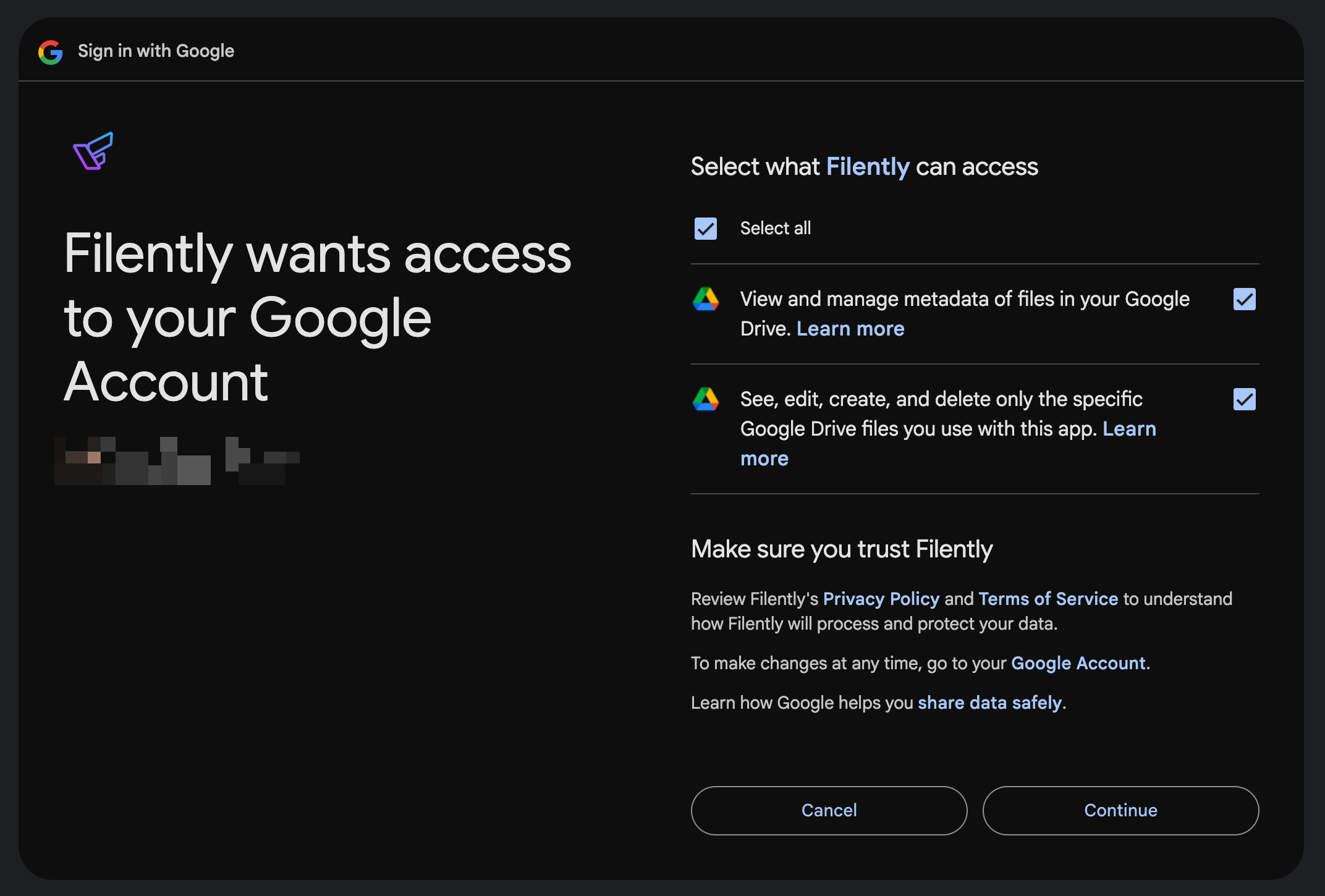
Standard Permissions
These permissions are granted when you first connect your Google Drive during setup.
1. "See, edit, create, and delete only the specific Google Drive files you use with this app."
What it allows: Create, read, rename, and move files that Filently uploads or creates in your Drive.
Why it's needed: When you upload a document, Filently places it in a temporary folder, extracts its content, renames it with an AI-suggested name, and moves it to the right folder. All of this requires the ability to create and manage those files.
What it does NOT allow: Access to any of your existing files that were not created by Filently. Your personal documents, photos, spreadsheets, and other files remain completely private.
2. "View and manage metadata of files in your Google Drive."
What it allows: See the names, types, sizes, and structure of your folders and files (metadata only, not file contents).
Why it's needed: Filently needs to understand your folder organization so it can suggest the best location for each document. It also reads file metadata like names and types so the AI can learn from your existing naming patterns.
What it does NOT allow: Read the contents of your existing files. Filently can see metadata like names and folder hierarchy, but it cannot open or read any files.
Additional Permission for Inbox Folder Watching
This permission is optional and only requested if you choose to enable inbox folder watching.
3. "See, edit, create, and delete all of your Google Drive files."
What it allows: Read and write access to all files in your Drive, including Shared Drives.
Why it's needed: Inbox folder watching detects when new files appear in your inbox folder and processes them automatically. The standard permission only allows Filently to access files it created – detecting files added by you, another app, or a shared link requires broader access.
When it's requested: Only when you enable inbox folder watching in Settings > Sources. If you never enable this feature, Filently will never ask for this permission.
For more on how inbox folder watching works, see Inbox Folder Watching .
Important Things to Know
You can revoke access at any time. Visit your Google Account permissions, find Filently, and click "Remove Access." Filently will no longer be able to interact with your Drive until you reconnect.
Filently only accesses what it needs. It does not scan, index, or read the contents of your personal files. Even with inbox folder watching enabled, Filently only processes files that appear in your designated inbox folder.
All connections are encrypted. Every interaction between Filently and Google Drive uses secure HTTPS/TLS connections.
Related Articles
Still need help? Ask the team