Connecting AI Apps (MCP)
Connect an AI app such as Claude or ChatGPT to Filently. Then ask it about your documents and let it file them for you.
Written By Valentin from Filently
Last updated About 9 hours ago
What connecting an AI app does
When you connect an AI app such as Claude or ChatGPT, you can ask it things like "Which documents are waiting for my review?" or "File the electricity bill into the folder Filently suggests." The app asks Filently and answers in the chat.
Filently connects to AI apps through MCP (Model Context Protocol), an open standard. Any AI app that supports MCP connectors can connect, not only the ones in this article.
What an AI app can do through Filently
A connected AI app can:
List your documents in Filently: the ones waiting for your review, the ones Filently is still reading, the ones that failed, and the ones already filed. For each document it sees the file name, the name and folders Filently suggests, and for a filed document its folder.
File a document into one of the folders Filently suggests for it, with the suggested name or a name you ask for. It can also move a filed document into another of its suggested folders. If the suggested folder does not exist yet, filing creates it in your Google Drive.
Suggest a name and a folder for a document that is not in Filently, for example a file you share in the chat. Filently answers with the name and folders it would choose. It does not store the document, and nothing is filed or moved. This needs a paid Filently plan.
Through Filently, an AI app cannot:
delete anything
move a document into a folder Filently did not suggest
read the content of your files
change your settings, your filing location or your plan
Filently decides only what an app can do through Filently. If you gave the app other connections, such as its own Google Drive connector, what it does there is between you and that app.
Every filing an AI app does appears on the Activity page with the app's name, such as Filed by Claude (claude.ai). You can undo it there like any other filing. See Activity.
Before you start
You need a Filently account with Google Drive connected and a filing location selected.
Every setup below uses this server URL:
https://mcp.filently.com/mcpConnect Claude on the web or in the desktop app
Claude on the web and the Claude desktop app share their connectors. You connect Filently once, and it works in both.
Open Filently in Claude's connector directory. You can also find it in Claude under Settings, then Connectors: click Browse and search for Filently.
Click Connect.
A Filently page opens. Sign in with the Google account you use for Filently, and allow access (see Allowing access below).
You're back in Claude. Start a new chat and ask about your documents.
Connect Claude Code
If you sign in to Claude Code with your Claude account, you don't need to do anything else. Connect Filently in Claude on the web or in the desktop app, as described above, and Claude Code uses it too. Type /mcp in Claude Code to check that Filently is in the list.
If you use Claude Code with an API key instead of a Claude account:
In your terminal, run:
claude mcp add --transport http filently https://mcp.filently.com/mcpStart Claude Code and type
/mcp.Select filently and choose Authenticate. Your browser opens a Filently page.
Sign in with the Google account you use for Filently, and allow access.
Go back to the terminal. Claude Code is now connected.
Connect ChatGPT
ChatGPT connects Filently as a custom connector. Custom connectors need developer mode, which not every ChatGPT plan offers.
In ChatGPT, open Settings, then Apps.
Under Advanced settings, turn on Developer mode.
Click Create app.
Enter Filently as the name, paste the server URL, and choose OAuth as the authentication.
Confirm that you trust the app and click Create.
A Filently page opens. Sign in with the Google account you use for Filently, and allow access (see Allowing access below).
You're back in ChatGPT. To use Filently in a chat, add it from the + menu.
Connect another AI app
Any AI app that supports MCP connectors with sign-in can connect to Filently:
In the app, add a new MCP connector, sometimes called a custom connector, integration or server.
Paste the server URL. If the app asks how to sign in, choose OAuth.
The app opens a Filently page. Sign in with the Google account you use for Filently, and allow access.
If an app cannot connect, tell us in the chat which app it is.
Allowing access
Filently asks you every time an AI app connects. Before you allow access, check what the page shows:
App: the name the app gives itself.
From: the web address the app identifies itself with, such as
claude.aiorchatgpt.com. A name alone proves nothing, so check this address.Sends you to: where Filently sends you after you allow access. For Claude Code, this is a program on your own computer.
What the app will be able to do: read your Filently data, and, if the app asks for it, file your documents. You can only allow or cancel the whole request.
If you don't recognize the addresses, or you did not start the connection yourself just now, click Cancel.
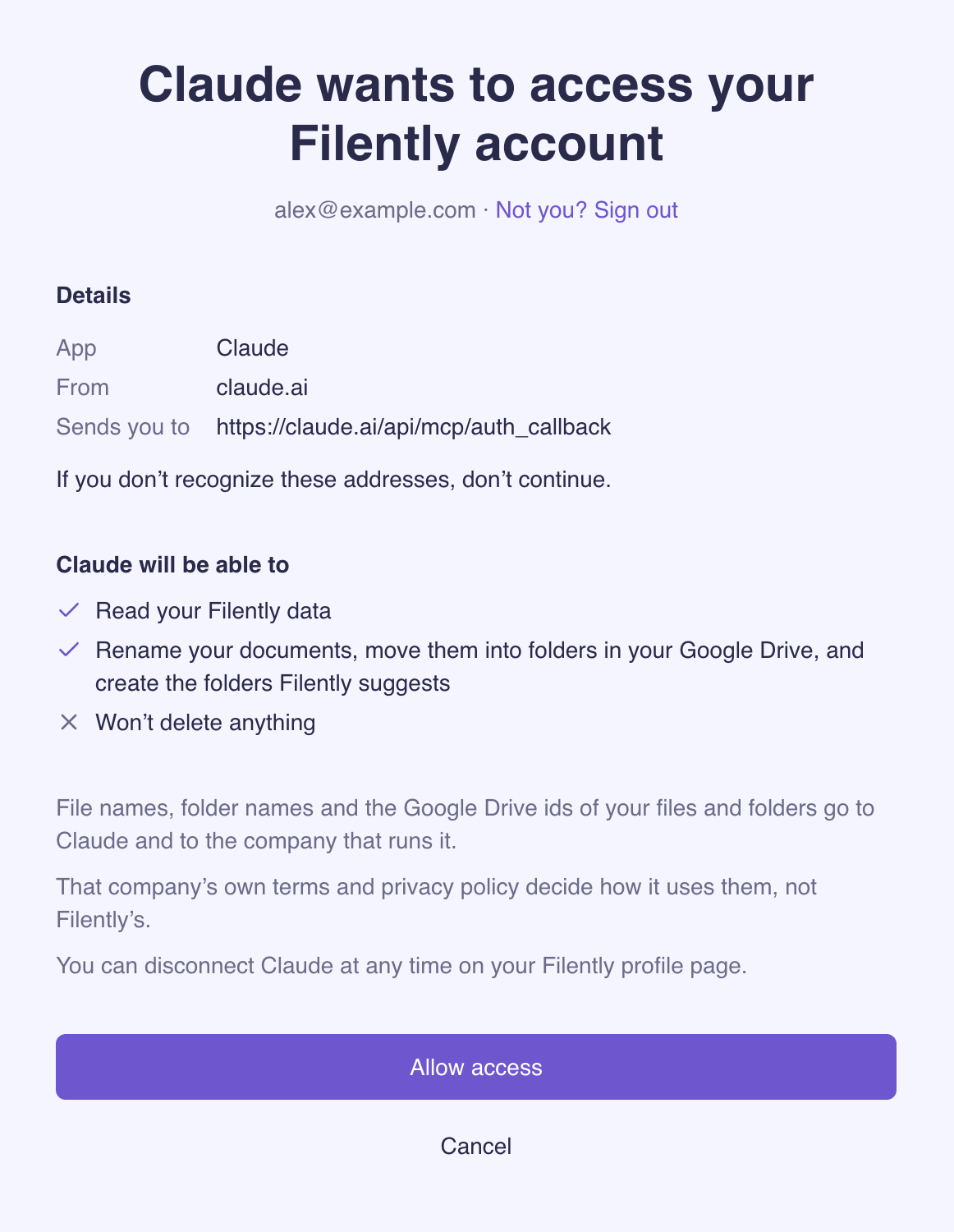
What the AI app receives
When you ask the AI app about your documents, Filently sends it:
file names and the names Filently suggests
folder names and folder paths in your Google Drive
the Google Drive ids of your files and folders
the status of each document, and when it arrived and was filed
Filently never sends the content of your documents to the AI app.
The AI app and the company that runs it, such as Anthropic for Claude or OpenAI for ChatGPT, receive this data. Their own terms and privacy policy decide how they use and store it, not Filently's. Their servers may be outside Switzerland and the EU. Filently sends data only when you ask the app something that needs it.
For how Filently itself processes your data, see How We Process Your Data.
Disconnect an AI app
Open your Profile page.
In the AI apps section, find the app and click Disconnect.
Confirm.
The app loses access at once. Filings it already did stay as they are, and you can still undo them on the Activity page.
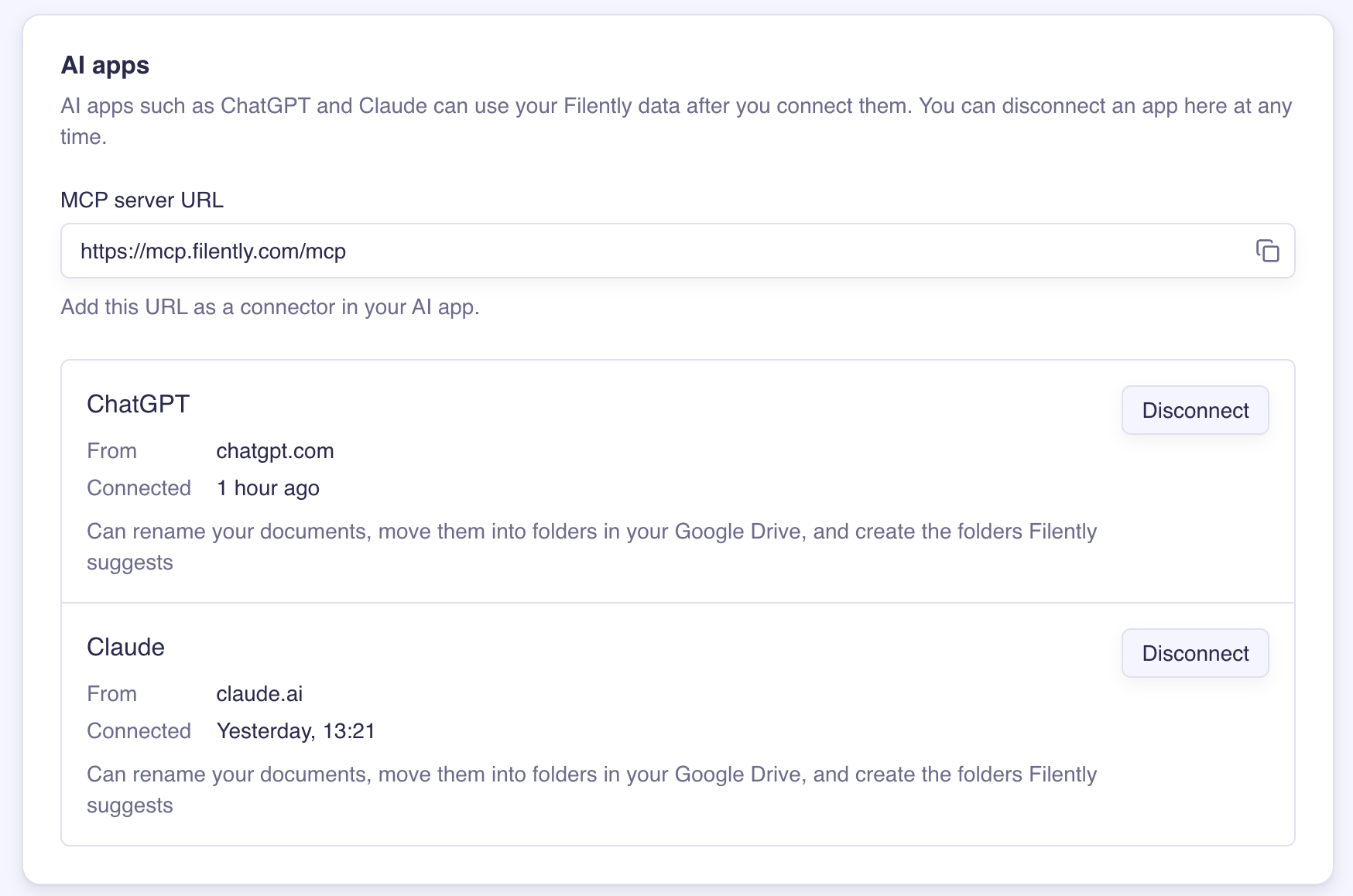
Removing Filently inside the AI app may not be enough. Some apps, Claude Code among them, keep their access to Filently after you remove the connector there. To end the access for certain, disconnect the app on your Filently Profile page.
To use the app again later, connect it again from the app.
Common questions
Can I let an AI app read my documents but not file them?
Can I let an AI app read my documents but not file them?
The app decides what it asks for, and the page where you allow access shows it. If the app asks to file documents, you can only allow or cancel the whole request.
The app says it needs a paid plan to suggest where a file goes
The app says it needs a paid plan to suggest where a file goes
Suggesting a name and folder for a document that is not in Filently needs a paid Filently plan. Listing and filing your documents in Filently works on every plan.
Filently says this Google account has no Filently account
Filently says this Google account has no Filently account
You signed in with a different Google account than the one you use for Filently. Click Not you? Sign out or start again, and choose the right account.
Related Articles
Was this helpful?
Still need help? Ask the team