Common Issues and Solutions
Quick fixes for the most frequent problems you may encounter.
Written By Valentin from Filently
Last updated 1 day ago
Processing Failed
Sometimes a document fails during processing. This is usually a temporary issue.
What to try:
Retry — click the Retry button on the document card. You get one automatic retry per document.
File manually — if the retry also fails, click "File Manually" to choose a filename and folder yourself.
Remove — remove individual documents from the card menu, or filter the dashboard by Failed, select them all and choose Remove... to clean up all failed documents at once.
Re-upload — remove the document and upload again.
When removing a document, you can choose whether to also move the file to Google Drive trash or keep it in Drive. Files moved to trash can be recovered from Google Drive's trash within 30 days.
If the problem keeps happening with specific files, contact support and include your debug info (see below).
Google Drive Permission Errors
You may see a message like "Could not move file — your storage permissions may have changed" when filing a document.
Common causes:
Your Google Drive permissions were changed by a workspace admin.
You're trying to file into a shared drive where your role doesn't allow moving files.
What to try:
Go to Settings > Storage and check that your Google Drive connection is active.
For shared drives, make sure you have the Content Manager role or higher. Ask your drive admin if you're unsure.
Reconnect your Google Drive if the issue persists.
Cannot Remove a Document
If you see "Cannot remove: file has been moved outside the upload folder", it means the file was moved in Google Drive after uploading.
Filently can only remove files that are still in the upload folder. You'll need to manage this file directly in Google Drive.
Document Limit Reached
When your monthly document limit is reached, new uploads are queued with the status "Waiting to be processed." They will be processed automatically when your limit resets on your next billing date or when you upgrade your plan.
Documents that were already filed don't count again if you re-file them.
Inbox Folder Issues
Missing inbox folder
If your inbox folder was deleted from Google Drive, Filently will show a notice on the Sources page. You can set up a new inbox folder from there.
Files not being processed
Files are only picked up if they're placed directly in the inbox folder, not in subfolders.
Google Workspace files (Docs, Sheets) created inside the inbox may be detected before you've added content. Consider creating them elsewhere and moving them in when ready.
If you have manual approval enabled, files wait for your approval before processing.
Sharing Debug Info with Support
Every document card has a Debug Info option in its menu (the three-dot icon). This opens a panel with technical details about how your document was processed.
How to use it
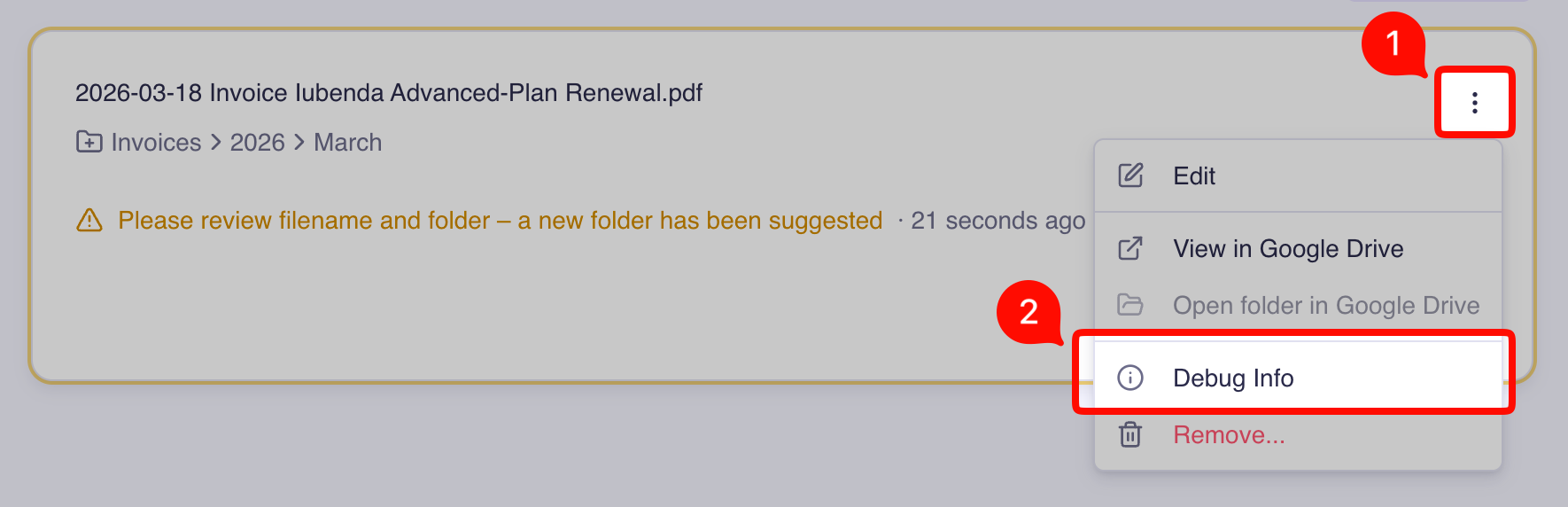
Open the three-dot menu on the document card.
Click Debug Info.
Use one of the copy buttons:
Copy Debug Info — copies technical identifiers like document ID, file ID, and folder path. This is usually enough for support to investigate.
Copy Full Details — also includes AI classification output such as the suggested filename, folder reasoning, and confidence scores. Review this before sharing, as it may contain details derived from your document.
Paste the copied information into your support message.
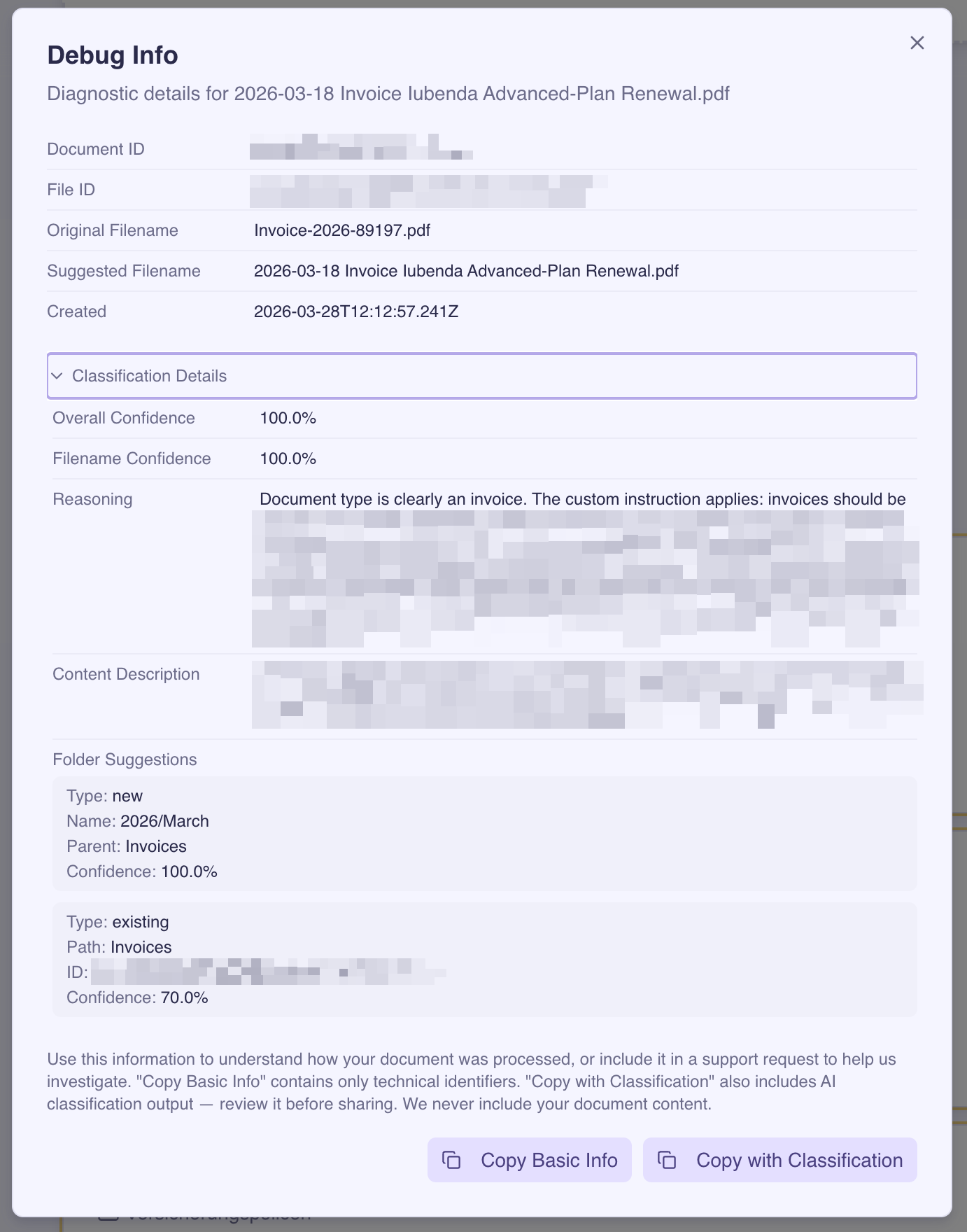
Your document content is never included in the debug info.
Related Articles
Still need help? Ask the team