How Filing Works
A look at what happens behind the scenes when Filently processes your documents.
Written By Valentin from Filently
Last updated 7 months ago
The Filing Pipeline
When you upload a document, Filently processes it through several steps before it ends up in the right folder with the right name. Here is what happens:
1. Text Extraction
First, Filently extracts the readable content from your document. How this works depends on the file type:
PDFs and images – Filently uses OCR (optical character recognition) to read text from scanned pages, photographed documents and image files.
Office documents (Word, Excel, PowerPoint, OpenDocument) – These are parsed natively, so text extraction is fast and accurate.
Google Workspace files (Docs, Sheets, Slides) – Content is exported directly from Google, so extraction is instant and complete.
💡 Filently processes your documents securely in the EU cloud. The extracted text is used solely to generate naming and filing suggestions. It is never stored permanently, used for AI training, or accessible to the Filently team. Your document content remains yours alone.
2. AI Analysis
Once the text is extracted, the AI analyzes it against several factors. When there is little or no text, the AI uses the original filename instead.
Your folder structure in Google Drive
Your filename format preferences (date format, separators, capitalization)
Any custom filing instructions you have set up
The types of documents already in your folders
This context helps the AI understand not just what the document is, but where it belongs in your specific organization system.
💡 All analysis happens in real time. Once the suggestions are generated, the extracted content is discarded. Filently does not store the document content itself.
3. Name Suggestion
The AI generates a clean, descriptive filename based on the document's content. Instead of keeping names like "scan_20240315_001.pdf", Filently suggests something meaningful – like "2026-01-16_Invoice_Acme-Corp.pdf".
The suggested name follows your format preferences, including your chosen date format, separators, and capitalization style.
4. Folder Suggestion
Next, the AI determines the best folder for the document. It considers your existing folder structure, the document type, and the content to pick the most appropriate location.
Along with its primary recommendation, the AI also suggests 2-3 alternative folders that could be a good fit. This way you always have options if the top suggestion is not quite right.
5. Confidence Score
Every suggestion comes with a confidence score that indicates how certain the AI is about its recommendation. This score plays an important role in what happens next.
What Happens After Processing
The next step depends on your settings and the AI's confidence level:
High confidence + Auto-filing enabled
The document is automatically renamed, moved to the suggested folder, and marked as filed. You do not need to do anything – but you can still review and change the filing afterwards if needed.
Any confidence + Auto-filing disabled
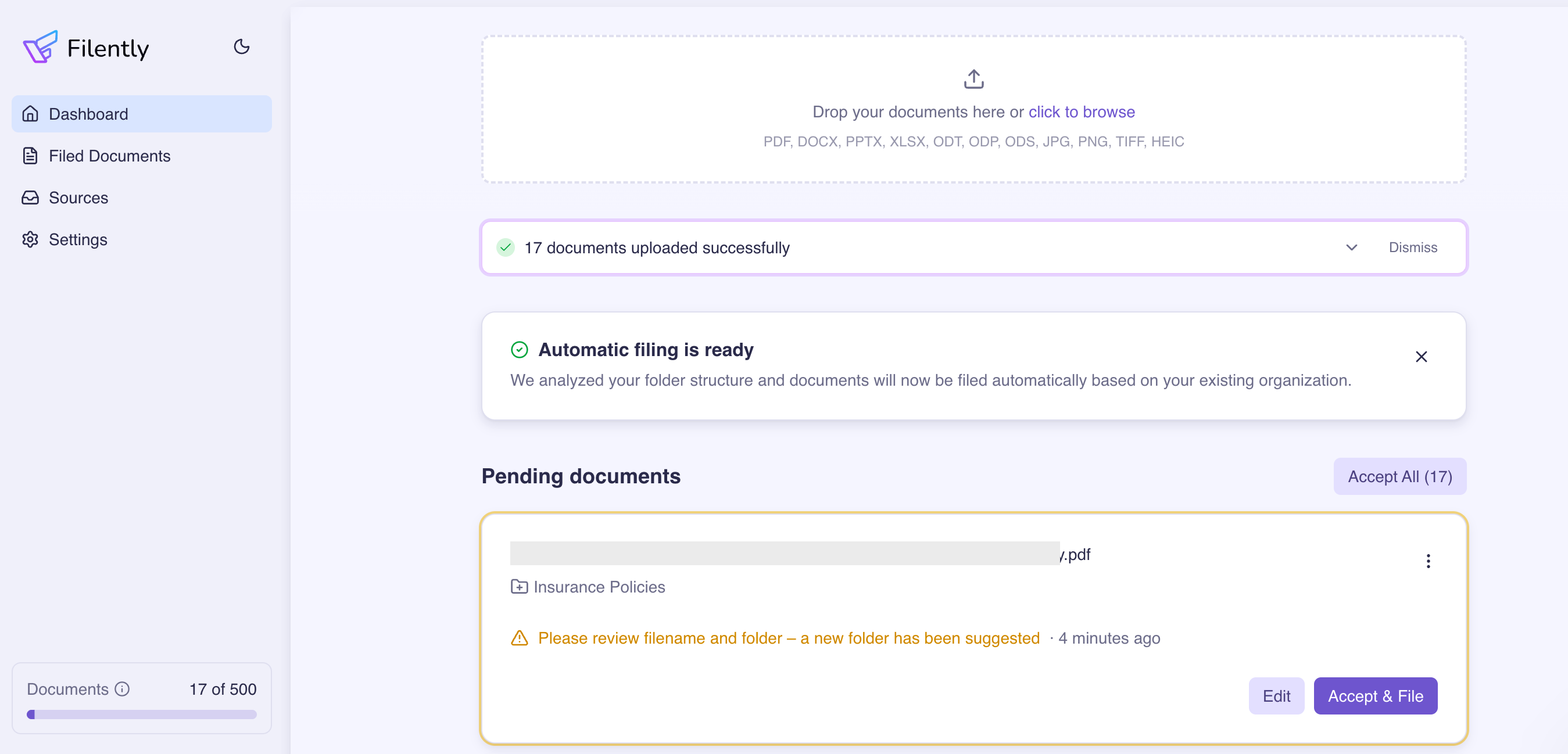
The document is placed in "Awaiting Review" status. It appears on your dashboard for you to approve the suggestion, edit the filename, or choose a different folder.
Low confidence (even with auto-filing enabled)
When the AI is not confident enough about its suggestion, the document is always sent for your review – regardless of your auto-filing setting. This prevents documents from being filed incorrectly.
What the AI Considers
To make its decisions, the AI takes into account:
Document content – The actual text and information in the document
Your folder structure – The folders and subfolders you have in Google Drive
Existing documents – What types of documents already live in each folder
Custom filing instructions – Any specific rules you have defined
Filename format preferences – Your preferred date format, separators, and naming style
The more you use Filently and the more specific your instructions are, the better the AI gets at filing your documents exactly the way you want.
Related Articles
Still need help? Ask the team