Selecting Your Root Folder
Choose the top-level folder where Filently will organize all your documents.
Written By Valentin from Filently
Last updated 3 months ago
What is the Root Folder?
After connecting Google Drive, Filently asks you to select a root folder. This is the top-level folder where Filently will organize all your documents. Every folder Filently creates and every document it files will live inside this root folder.
Think of it as the boundary for Filently's workspace within your Drive.
How to Select Your Root Folder
During onboarding, you will see a folder browser showing your Google Drive. The first view lists My Drive and any Shared Drives you have access to. Navigate into the one you want, then select the folder to use as your root.
You can select:
A dedicated subfolder – For example, "Documents" or "Work/Filently". This is our recommendation for most users (see below).
Your entire "My Drive" – Filently manages documents across your whole Drive.
A Shared Drive – If your team uses Google Shared Drives (available on Professional and Teams plans).
Our Recommendation: Use a Dedicated Subfolder
We recommend selecting a dedicated subfolder (like "Documents") rather than your entire My Drive. Here is why:
Cleaner analysis. Filently indexes the contents of your root folder to understand your organization. If My Drive contains hundreds of unrelated files – app data, shared folders, cached files, photos – this makes the analysis less effective and slower.
Better filing suggestions. When the root folder only contains documents, the AI can make more accurate filing decisions without being confused by unrelated content.
Future flexibility. Even if you only handle a few document types today, a dedicated subfolder keeps things organized as your needs grow.
If you do select My Drive as the root, make sure it primarily contains documents and folders relevant to what Filently should manage. A Drive full of app-generated files, photos, or other non-document content is not ideal.
Using a Shared Drive
If your organization uses Google Shared Drives, you can select one as your root. Shared Drive support is available on the Professional and Teams plans.
Why the Google Picker?
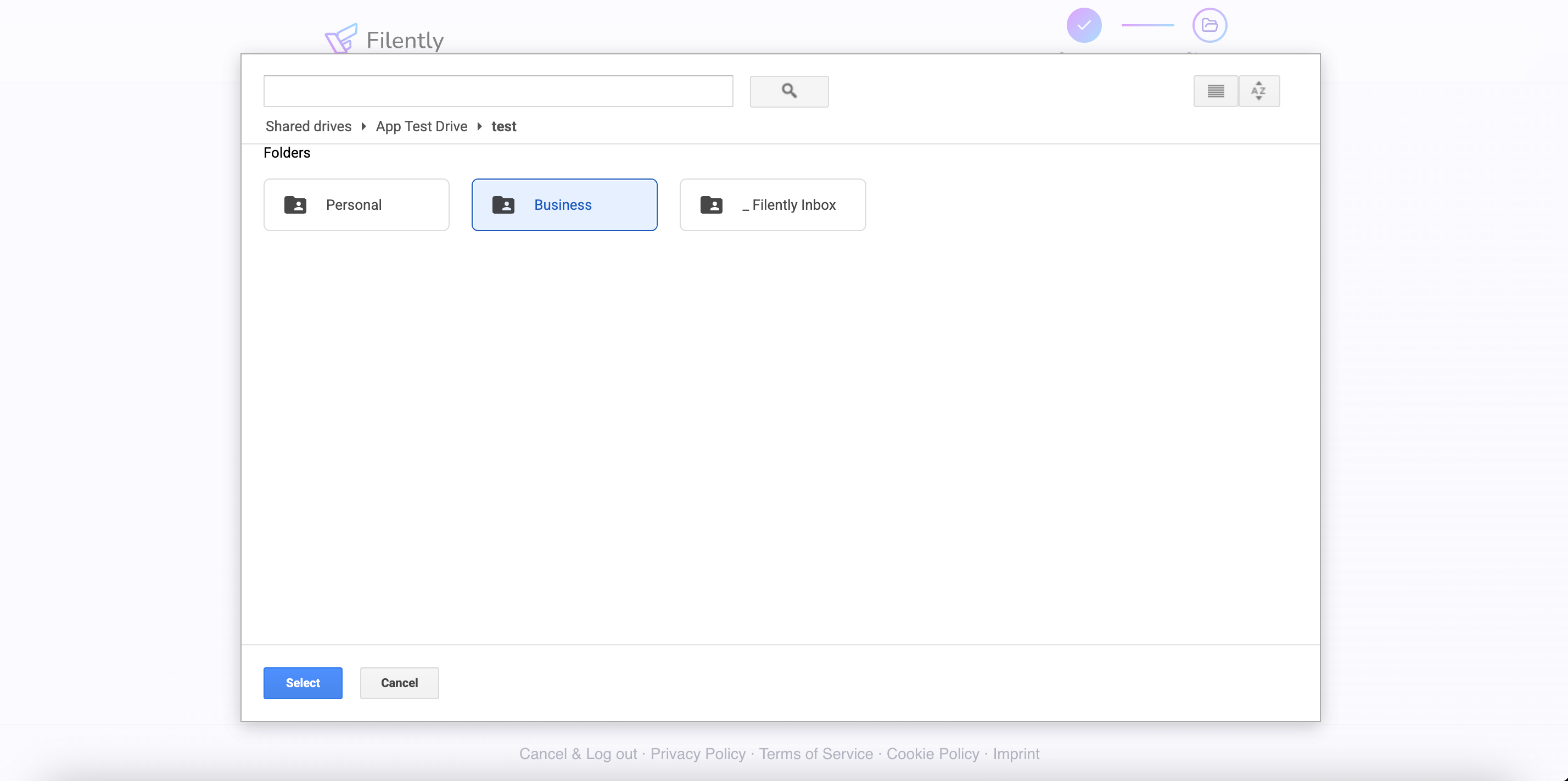
When you select a Shared Drive folder, Filently uses Google's own file picker instead of Filently's folder browser. This is by design – Google requires third-party apps to use their secure picker for Shared Drive access, which means Filently never needs broad access to list or browse your Shared Drives directly. Your Shared Drive contents stay under Google's access controls.
How to select a folder in a Shared Drive
In the folder browser, select Shared Drives to open the Google Picker.
Navigate to the Shared Drive you want to use.
Select any folder inside the Shared Drive.
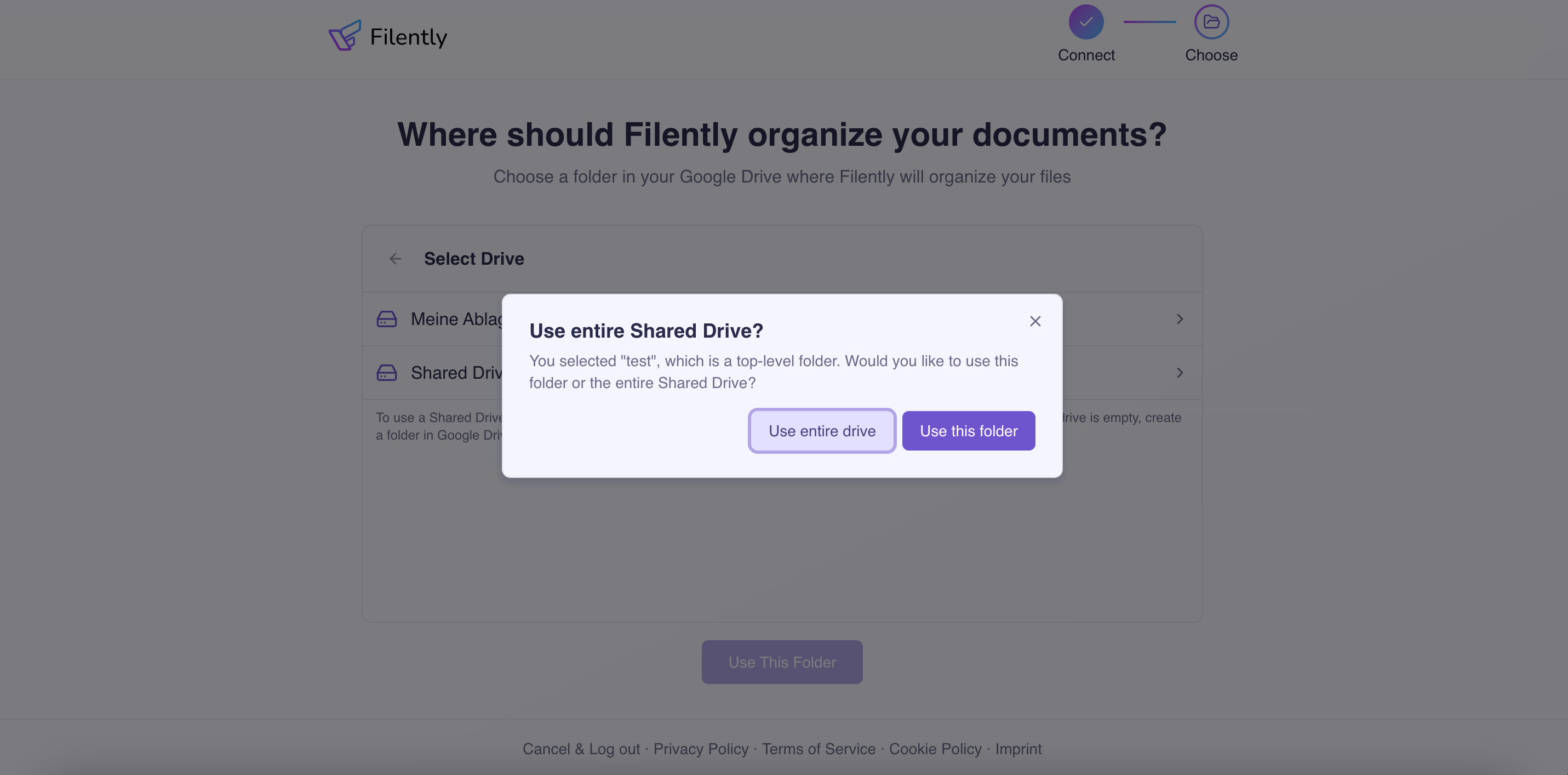
Filently will then ask whether you want to use the entire Shared Drive as your root or just the folder you selected.
If the Shared Drive is empty and has no folders yet, you will need to create a folder in Google Drive first. This is a limitation Google imposes on third-party apps – the picker cannot create new folders.
Creating new folders in a Shared Drive
The Google Picker does not support creating folders. If you need a new subfolder inside a Shared Drive to use as your root:
Select any existing folder in the Shared Drive through the picker.
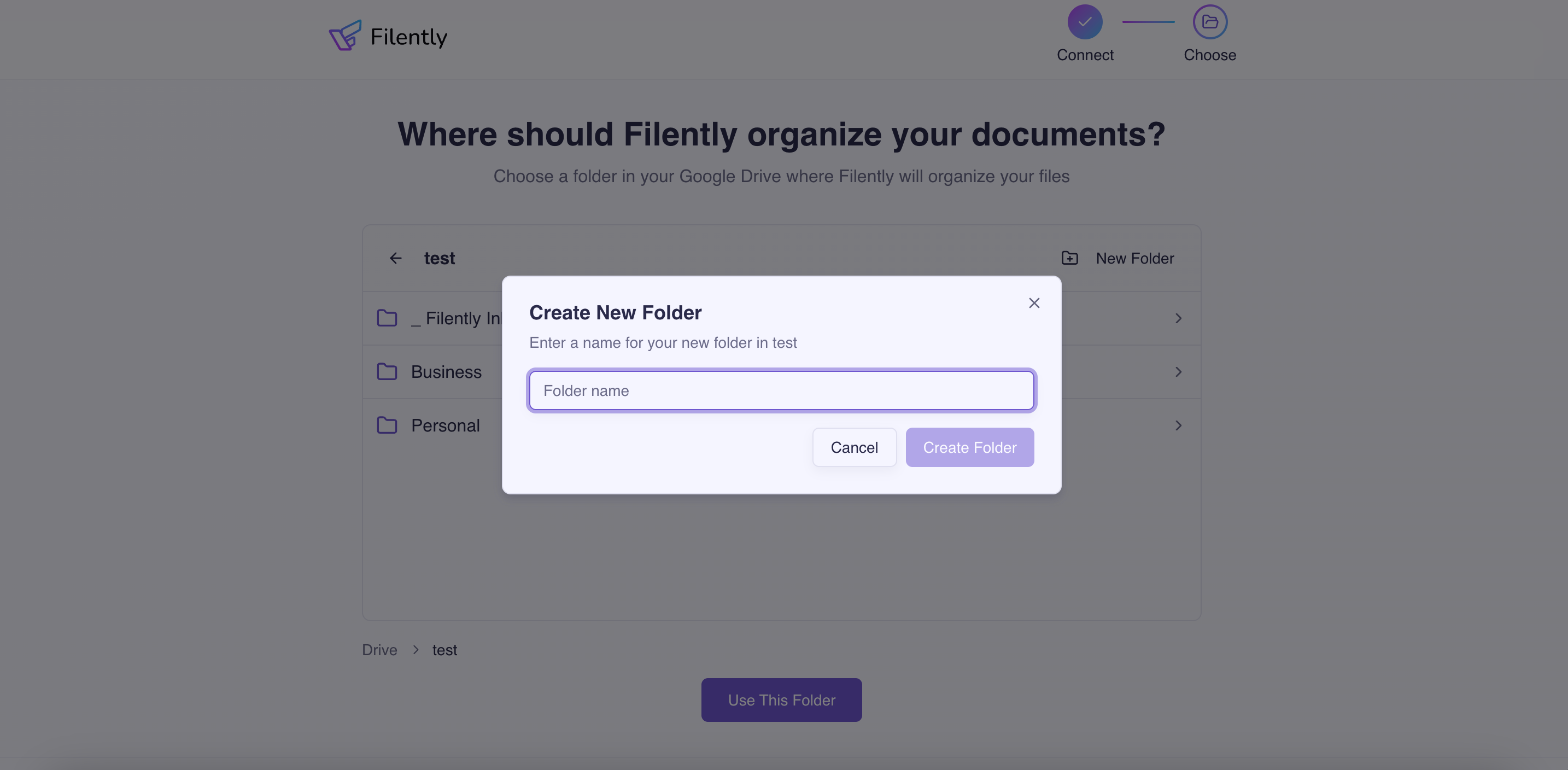
Once connected, you can create new folders using Filently's built-in folder browser.
Alternatively, create the folder directly in Google Drive before starting the Filently setup.
Tips for Choosing the Right Root Folder
If you already have a documents folder: Select the folder that contains your existing document organization. Filently will analyze your current structure and work with it rather than starting from scratch.
If you are starting fresh: Create a new subfolder (for example, "Documents" or "Filently") and select that. This gives Filently a clean workspace.
If your Drive is mostly documents already: Selecting My Drive can work, as long as it is not cluttered with unrelated files from apps, downloads, or other sources.
Good to Know
You can still use other folders manually. Filently only operates within the root folder. Anything outside of it is untouched and unaffected.
Renaming or moving the root folder is fine. If you rename or move the root folder in Google Drive, Filently will continue to work with it. The connection is based on the folder's identity, not its name or location.
Choose thoughtfully, but do not overthink it. The root folder defines where Filently works, but it does not limit how your folder structure grows inside it.
Next Step
With your root folder selected, Filently will analyze your existing folders and help you set up the right structure for your documents.