Filename Format Settings
Control exactly how Filently names your documents.
Written By Valentin from Filently
Last updated 7 months ago
Overview
Every document Filently processes gets a clean, descriptive filename. The filename format settings let you decide how that name is structured – from date placement and format to separators and capitalization.
You have two approaches to choose from:
Learn from Structure – Filently analyzes your existing files and automatically adopts their naming patterns.
Manual configuration – You pick the date format, separator, capitalization, and other options yourself.
You can find these settings under Settings > Filing > Filename Format.
Learn from Structure
If you already have a consistent naming convention across your folders, you can let Filently figure it out automatically.
When "Learn from Structure" is enabled, Filently looks at the existing filenames in your folder structure and detects the patterns you have been using. It then applies those same patterns to new documents it processes.
Requirements:
Your folder structure needs at least 15 existing files for reliable pattern detection. The more files you have, the better the detection works.
What happens when it is enabled:
The manual format settings (date format, separator, capitalization) are hidden – Filently mirrors your existing conventions instead.
The AI uses the detected patterns as guidance when generating filenames for new documents.
Best for: Users who already have an established naming convention in their Google Drive and want Filently to continue it seamlessly.
Manual Format Settings
If you prefer to set the rules yourself – or if you are starting fresh without many existing files – you can configure each aspect of the filename format manually.
Date Settings
These options control if, where, and how dates appear in your filenames.
Date inclusion
Choose when a date should be part of the filename:
Always – A date is added to every filename, regardless of whether the document contains one.
When Found – A date is included only if Filently detects one in the document content. (Default)
Never – No dates are added to filenames.
Date position
Choose where the date appears in the filename:
Prefix – The date comes at the beginning of the filename (e.g.,
2024-03-15 Invoice Acme Corp). (Default)Suffix – The date comes at the end of the filename (e.g.,
Invoice Acme Corp 2024-03-15).
Date format
Pick the date format that matches your preference:
Date fallback
When a document does not contain a date (and date inclusion is set to "Always" or "When Found"), Filently needs to decide what to do:
Use upload date – Fall back to the date the document was uploaded. (Default)
This ensures documents always have a date when you expect one, even if the content does not contain a recognizable date.
Format Settings
These options control the general appearance of your filenames.
Separator
Choose how words in the filename are separated:
The "Mixed" option lets the AI pick the most natural separator depending on the filename. For most users, this produces clean, readable results.
Capitalization
Choose how words are capitalized:
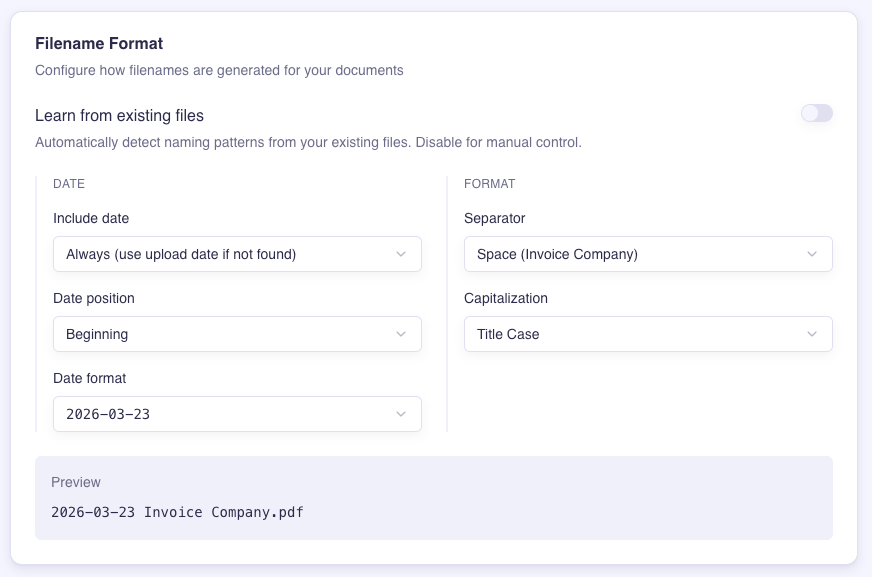
Live Preview
As you adjust your settings, a live preview at the bottom of the page shows how an example filename would look with your current choices. This lets you see the effect of each option before you save.
Tips
Not sure where to start? The defaults work well for most users. You can always come back and tweak things later.
Already have organized folders? Try "Learn from Structure" first – it can save you time by detecting your existing patterns automatically.
Changes apply going forward. Updating your filename format settings affects newly processed documents only. Documents that have already been filed keep their current names.
Combine with custom instructions. For more specific naming rules (like always including the company name on invoices), use Custom Filing Instructions alongside your format settings.
Related Articles
Still need help? Ask the team