Managing Filed Documents
Find, filter, and manage your documents after they have been filed.
Written By Valentin from Filently
Last updated 25 days ago
Where to Find Filed Documents
Filed documents are accessible in two places within Filently:
Dashboard
Your dashboard shows pending files (documents being processed or awaiting review). This gives you a quick overview of recent activity without leaving the main screen.
Filed Documents Page
The Documents page is your central archive for all completed files. Every document you have successfully filed appears here. This is your go-to place to search, filter, and manage your organized history.
Opening Files in Google Drive
Since your documents live in your Google Drive, Filently makes it easy to jump over to Drive when you need to:
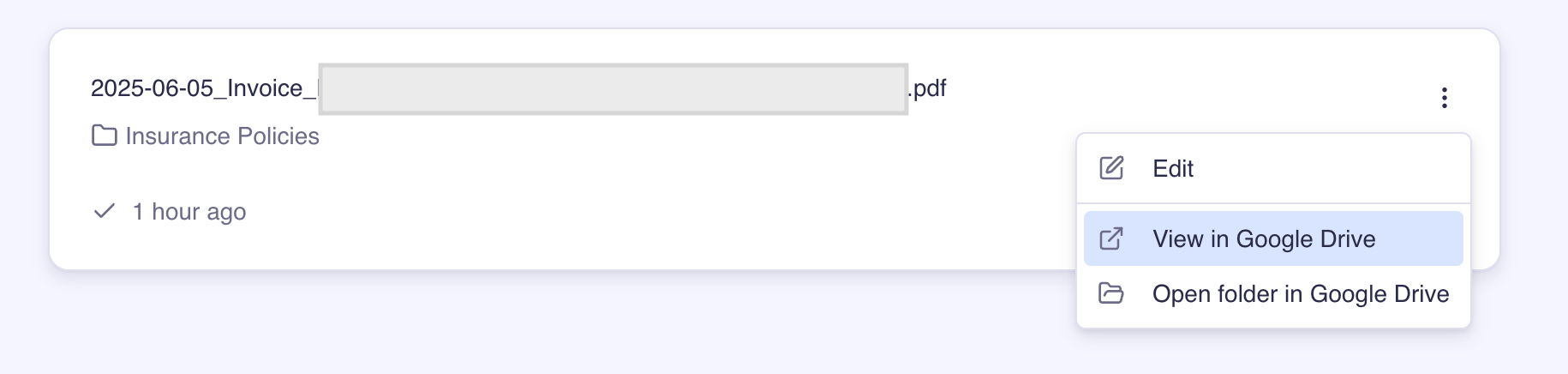
Open in Google Drive – Opens the file itself in Google Drive, where you can view, download, or share it.
Open folder in Google Drive – Opens the folder that contains the file, useful when you want to see what else is in that location.
Re-filing a Document
Need to move a document to a different folder? You can re-file it at any time:
Find the document on your Documents page.
Click on the (⋮) to open it.
Click Edit.
Select a new folder.
Click Save.
The file will be moved to the new location in your Google Drive immediately. There is no limit on how many times you can re-file a document.
For more on editing, see Editing Documents.
Moving Several at Once
Re-filing one document at a time suits a correction. When a whole group belongs somewhere else, the Documents page can move them together: choose Select to move, tick the ones you want, and pick a single destination for all of them. Each keeps the name it already has.
Filently offers a shortlist of the folders your selection already points at, so a clear pattern is usually one click rather than a search. See Filing and Moving Many Documents at Once.
Related Articles
Still need help? Ask the team