Excluding Folders
Tell Filently to leave a folder inside your filing location alone, and see which folders it skips on its own.
Written By Valentin from Filently
Last updated About 1 hour ago
What excluding a folder does
Filently files documents into the folders inside your filing location. If you exclude a folder, Filently leaves that folder and every folder inside it alone:
Filently does not file documents into it on its own. This is true for the folder and for all of its subfolders.
Filently does not suggest it as a folder for a new document.
Filently does not learn from it. When Filently reads your folder structure to learn how you organize your files, it skips the excluded folder.
Excluding a folder does not change the folder:
Filently does not move, rename or delete anything in it. Your files stay exactly as they are.
Documents that Filently filed there before stay where they are.
You can still file into it by hand. When you choose a folder for a document yourself, an excluded folder shows an Excluded badge, but you can still select it.
When to exclude a folder
Exclude a folder when you want Filently to stay out of it. Some examples:
A folder you share with your team. Other people put files there in their own way, and Filently should not add to it.
A folder that another app or a scanner writes into, for example a folder called "Scans" that your scanner app fills.
An archive you do not want touched, for example a folder called "Old archive" with documents from past years.
How to exclude a folder
Open the Storage page.
Go to the Excluded folders section.
Click Exclude a folder.
In the folder browser, open the folder you want to exclude.
Click Exclude this folder.
Filently confirms the change, and the folder appears in the list under Excluded by you.
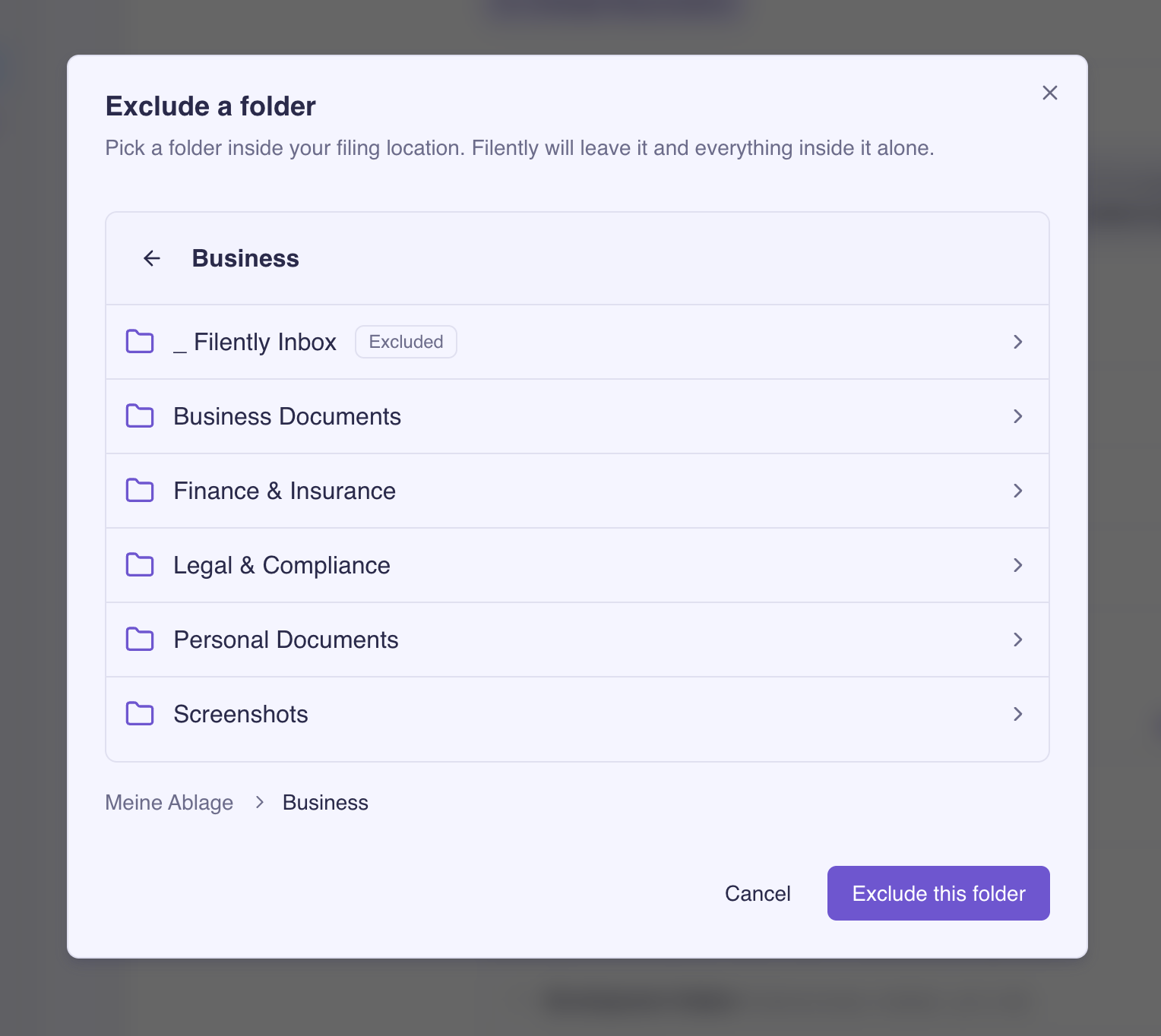
Which folders you can exclude
The folder browser only shows folders inside your filing location. Filently refuses a folder in these cases, and tells you why:
The folder is your filing location itself. Filently files into this folder, so you cannot exclude it. Choose a folder inside it instead.
The folder is the inbox folder. Filently already never files into the
_ Filently Inboxfolder.The folder is not in your filing location. Filently works only inside your filing location, so it already leaves this folder alone.
The folder is inside a folder that is already excluded. It is already left alone, together with the folder above it.
The folder is already excluded.
If Filently refuses a folder, click Choose another folder to go back to the folder browser.
You can exclude as many folders as you like. This works on every plan.
How to stop excluding a folder
On the Storage page, find the folder under Excluded by you.
Click the X button next to it (Remove from excluded folders).
Filently can file into the folder again after it has read your folders again. If you removed the wrong folder, click Undo in the message that appears.
After a change
Filently stops filing into a folder as soon as you exclude it. It then reads your folder structure again in the background, so its folder suggestions follow the change. When you remove an exclusion, Filently can file into the folder again once this background update is done. You do not need to do anything.
Messages next to your excluded folders
A folder you excluded can show one of these notes:
Not in your filing location. The folder is outside your filing location, so the exclusion has no effect. This can happen after you move the folder in Google Drive or choose a new filing location. The exclusion applies again if you choose a filing location that contains the folder.
Not found. Filently cannot find the folder in your Google Drive. You may have deleted it or moved it to the trash. You can remove it from the list.
Your excluded folders stay in the list when you change your filing location.
Folders Filently leaves alone on its own
The Excluded folders section also shows folders that you did not add yourself. You cannot remove these in the app.

Inbox folders
Filently watches your inbox folder for new files and never files into it. The default inbox folder carries the tag Default. To manage it, click Manage on Sources. See Inbox Folder Watching .
Skipped automatically
When Filently reads your filing location, it skips some kinds of folders that almost never hold documents. The list groups them by reason:
Click a reason to see its folders. If Filently skips a folder that you want it to file into, click the X button next to the folder and then Contact support. We will look at it with you. The message to support names only the reason, not the folder.
Related Articles
Was this helpful?
Still need help? Ask the team