Managing Your Storage Connection
View your Google Drive connection, change where Filently files your documents, and reconnect when access is lost — all from the Storage page.
Written By Valentin from Filently
Last updated About 2 months ago
The Storage Page
The Storage page is where you manage everything about where Filently reads and writes your files. It shows your connected provider, what Filently can and cannot access, your filing location, and the status of folder indexing — in one transparent place.
Connection Status
The provider card shows whether your Google Drive connection is active or needs reconnecting.
Active — Filently can read and write files as normal.
Needs reconnecting — Filently has lost access (usually because permissions were revoked or expired). The card is grayed out and shows a Reconnect button. See the Reconnecting Google Drive section below.
What Filently Can Access
The card includes a short summary of your permission scope — what Filently can and cannot see or do in your Google Drive. By default, Filently can only work with files it creates and read your folder names and structure; it cannot open your existing personal files.
For the full breakdown, see Google Drive Permissions Explained.
Filing Location
Your filing location is the top-level folder where Filently organizes everything; in technical terms, the filing location is your "root folder". The Storage page shows:
The filing location name, linked to the folder in Google Drive.
The inbox folder (
_ Filently Inbox) — a row beneath it, also linked. This is a temporary subfolder inside your filing location where incoming documents land before they are filed; it is not the root folder itself. It holds its own subfolders that sort incoming files by how they arrived. See Inbox Folder Watching.Folder count — how many folders exist inside your filing location. A surprisingly high number can be a hint that you picked a broader folder than you intended.
To choose a filing location for the first time, see Selecting Your Filing Location.
Indexing Status
When Filently sets up — or whenever your filing location changes — it indexes your folder structure. This means it reads your folder and file names to learn how you organize things, so it can file new documents in the right place.
Filently only reads folder and file names during indexing — never the contents of your files.
The Storage page surfaces the current state:
In progress — Filently is reading your folder structure. You can still upload during this time; those uploads are queued and processed automatically as soon as indexing finishes.
Completed — shows when indexing last finished successfully.
Failed — surfaced clearly if something went wrong. Reconnecting usually resolves it; contact support if it persists.
Changing Your Filing Location
You can move Filently to a different folder at any time.
How to change it
On the Storage page, open the Change filing location action in the filing location section.
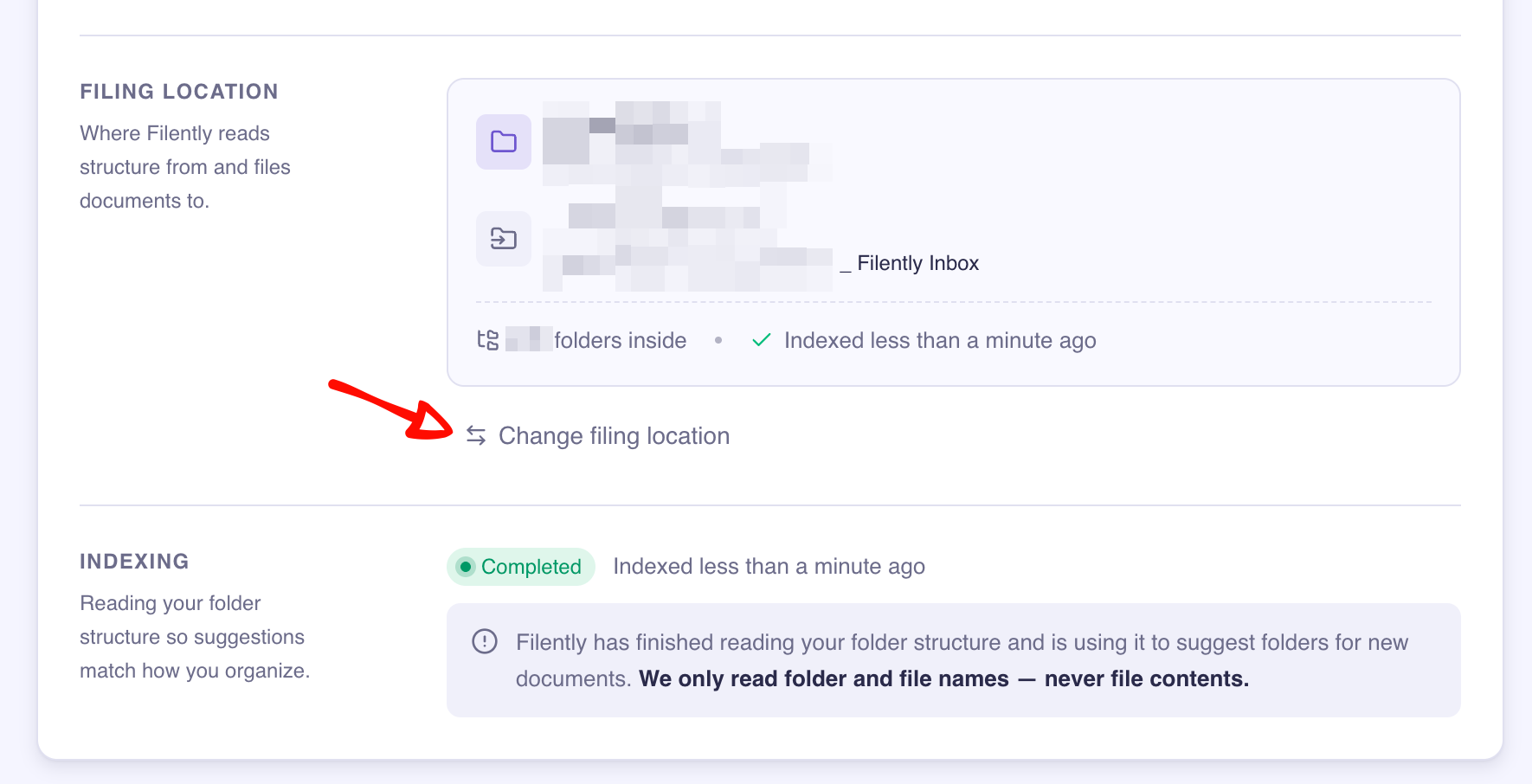
Pick the new folder in the folder browser. (Selecting a Shared Drive folder works the same way as during setup — see Selecting Your Filing Location.)
Review the confirmation summary of what will happen, then confirm.
What happens when you change it
Your inbox folder follows the new location. When the new folder is on the same drive, the
_ Filently Inboxfolder is simply moved under it. When you switch to a different drive (for example from My Drive to a Shared Drive), Google doesn't allow moving a folder into a Shared Drive, so Filently creates a fresh_ Filently Inboxin the new location instead, with its subfolders, and leaves the old one in place.Switching drives waits until your documents are filed. If you have documents still waiting to be filed, Filently asks you to let those finish before moving to a different drive — they live in your current inbox and can't follow you across drives. Changing to another folder on the same drive is never blocked.
Filently re-indexes the new folder. This usually takes a moment. Uploads you make in the meantime are queued and processed once indexing completes.
Documents Filently already organized stay where they are. Changing the filing location does not move or delete your existing files — they remain exactly where they are in Drive. Only new documents are filed into the new location going forward.
It's reversible. If you change your mind, simply change the filing location again. There's no undo button, but switching back triggers another re-index and you're where you started.
One thing to note:
Choosing the entire drive (the very top of My Drive or a whole Shared Drive) shows an extra confirmation, since that's almost never what you want. A dedicated subfolder gives Filently a cleaner workspace.
Reconnecting Google Drive
If your connection shows needs reconnecting, Filently has lost access to your Drive. Common reasons:
You (or a workspace admin) removed Filently's access in your Google Account permissions.
The connection expired.
To reconnect:
On the Storage page, click Reconnect on the provider card. (You can also use the reconnect banner on your dashboard.)
Sign in with the same Google account and approve the permissions.
You'll be returned to the Storage page, which shows a confirmation that the connection is active again.
Your filing location, folders, and documents are preserved through a reconnect — you're only re-granting access, not starting over.
Related Articles
Still need help? Ask the team