Filing and Moving Many Documents at Once
Pick the documents you want, then file or move them in one run: either with the suggestion each one already has, or all together into a single folder you choose.
Written By Valentin from Filently
Last updated 20 days ago
Two ways to file in bulk
Filently gives you two different bulk actions, and which one you want depends on whether you trust the AI's suggestions for this batch.
Accept All files everything currently matching your filters, each document going to the folder the AI suggested for it. It is one click and it asks nothing further. Use it when the suggestions look right.
Select to file lets you choose exactly which documents take part. Once you have a selection you can still accept each document's own suggestion, or you can override the AI entirely and send the whole selection into one folder you pick. Use it when you want control over the set, or when you already know where these documents belong.

Filing and moving are different words for different work
Filing gives a document its first home. Moving changes the home it already has. Filently uses whichever word fits what you are actually doing, and it decides that from your selection: when nothing in it is waiting to be filed for the first time, every label switches from "file" to "move".
In practice that means the Documents page, which lists only documents that are already filed, says Select to move, Move to folder... and Move N documents throughout, and the run shows up in your Activity feed as a Bulk move. Your dashboard, where documents are waiting for their first home, keeps the filing words. A selection that mixes both is a filing, because at least one document is genuinely being filed.
The rest of this article uses the filing words. Every label below has a moving twin.
Selecting documents
Selection works the same way on your dashboard and on the Documents page.
Choose Select to file (or Select to move on the Documents page). The list switches into selection mode and a bar appears above it.
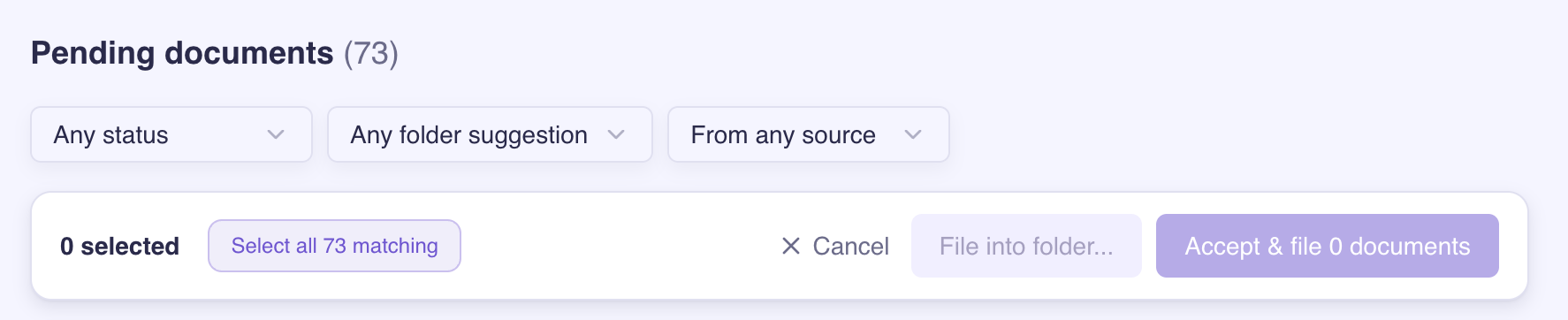
Tick the documents you want. The bar keeps a running count, with Clear to start over and Cancel to leave selection mode.
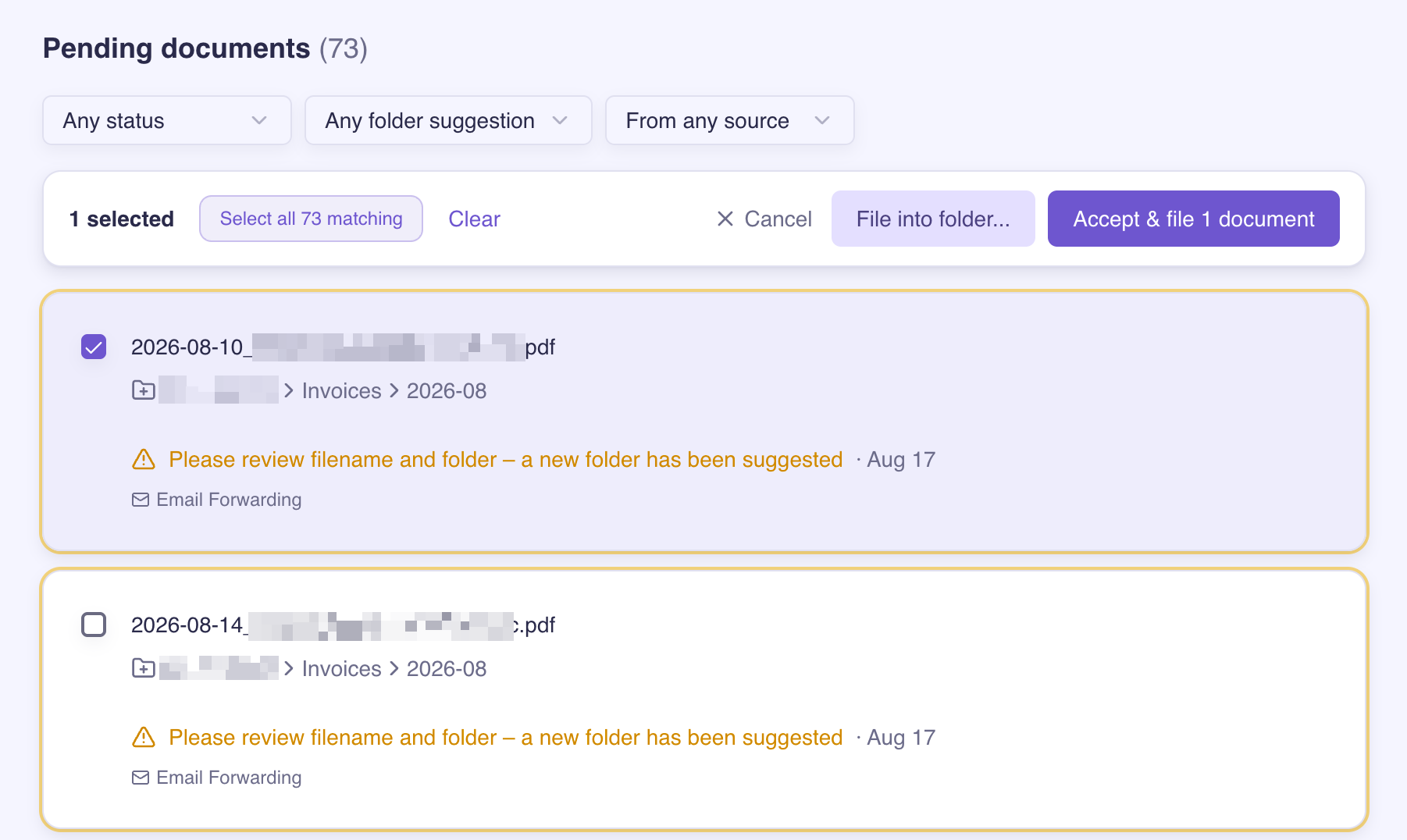
To take everything, choose Select all N matching. This covers documents on pages you have not scrolled to yet, not just the ones on screen. You can then untick individual rows to leave them out.
Narrow the list first with the filters if it helps.
Which documents you can tick
A document can be selected when it is:
Awaiting review, which is the usual case.
Filed already. Selecting it lets you move it somewhere else.
Failed processing. It never got a suggestion, but you can still give it a home.
Documents still uploading or processing cannot be ticked. There is nothing to file yet.
Accept and file the suggestions
The Accept & file N documents button files each selected document into the folder the AI suggested for it, under the name the AI suggested.
The number on this button is often smaller than the number you ticked, and that is deliberate. Accepting a suggestion requires there to be one. A document that is already filed has used its suggestion, and a document whose processing failed never got one, so neither is counted here even though both can be part of the selection. The count always tells you what will actually be filed.
File everything into one folder
Choose File into one folder... (or Move to folder... when everything you picked is already filed) to send the whole selection to a single destination, whatever the AI suggested for each document.
Choosing the folder
The confirmation opens with a shortlist headed Suggested across your selection. These are the folders your selected documents already point at, ordered by how many of them agree. Next to each folder you see its share of the selection, for example 23 of 50, so you can tell a strong pattern from a weak one.
For large selections, Filently reads the first 50 documents rather than all of them. The heading then says Suggested across the first 50 checked and the counts read 23 of 50 checked. Fifty documents is plenty to see which folder most of them want, and whichever folder you choose still applies to the entire selection, not only to those 50.
There is no minimum level of agreement, so a folder only one document points at still appears, just further down the list. The shortlist is empty only when none of the documents Filently checked points at a folder at all, and then the folder browser below it is the way through.
Browse all folders... opens your full Google Drive structure so you can pick any folder, including one that is not on the shortlist.
Once you pick, Filing into (or Moving into) shows the destination path so you can check it before committing.
Documents that keep their own filename
If any of your selected documents have no suggested name, a note in amber tells you how many. These are documents Filently could not analyze. They are still moved into the folder you chose, but they keep the filename they already have, since there is no suggested name to give them.
Confirming
The button reads File N documents, or Move N documents. That number is the whole selection, and it is usually larger than the count on Accept & file, because a folder you chose yourself needs no suggestion to be valid. Already-filed documents and failed ones are included.
The set is fixed the moment you confirm. Documents that arrive afterwards are not swept in, even if they would have matched.
While it runs
The run happens in the background, so you can keep working or leave the page. A panel shows a bar counting through the documents, and the Activity page gets an entry reading Filing 40 documents with Filing 12 of 40... — Moving 40 documents and Moving 12 of 40... for a move.
Only one of these runs can go at a time, whether it files or moves. If you try to start a second while one is going, Filently asks you to wait for the first to finish. A bulk revert is separate and can run alongside a bulk filing.
If your selection comes down to a single document, Filently just files it. There is no run to follow and no batch entry in the feed, only the document's own filing.
When it finishes
The Activity entry becomes Filed N documents — Moved N documents for a move — and is marked Completed, with a summary of what happened:
N filed, or N moved, are the documents that went where you sent them.
N blocked by drive access could not be moved because Google Drive refused the change. See Google Drive Permissions Explained if this keeps happening.
N failed ran into a problem. The report tells you which documents and why.
View report opens a panel listing every document the run changed, with its outcome. A document already sitting in the destination under the same name is counted as already in place rather than filed, and has no entry, because nothing happened to it. The documents do not each get their own entry in the timeline; the run is one entry, and the per-document detail lives in the report. Each document's own history still shows its filing.
If the run stopped early, the entry says so and tells you how many of the total were filed or moved before it stopped. Nothing is lost: the documents that were filed stay filed, and you can select the rest and run again.
Undoing a bulk filing
Everything a run did is revertible. In the timeline the run is a single entry, but when you choose Select to revert on the Activity page the list switches to revertible changes and the individual filings appear, so you can put back the whole run or just the documents that went to the wrong place. See Activity.
Related Articles
Was this helpful?
Still need help? Ask the team