Uploading Your First Documents
Your setup is complete – here is how to start organizing documents with Filently.
Written By Valentin from Filently
Last updated About 7 hours ago
Your folder structure is in place and Filently is ready to go. Time to upload your first real documents.
How to Upload
There are two ways to upload documents:
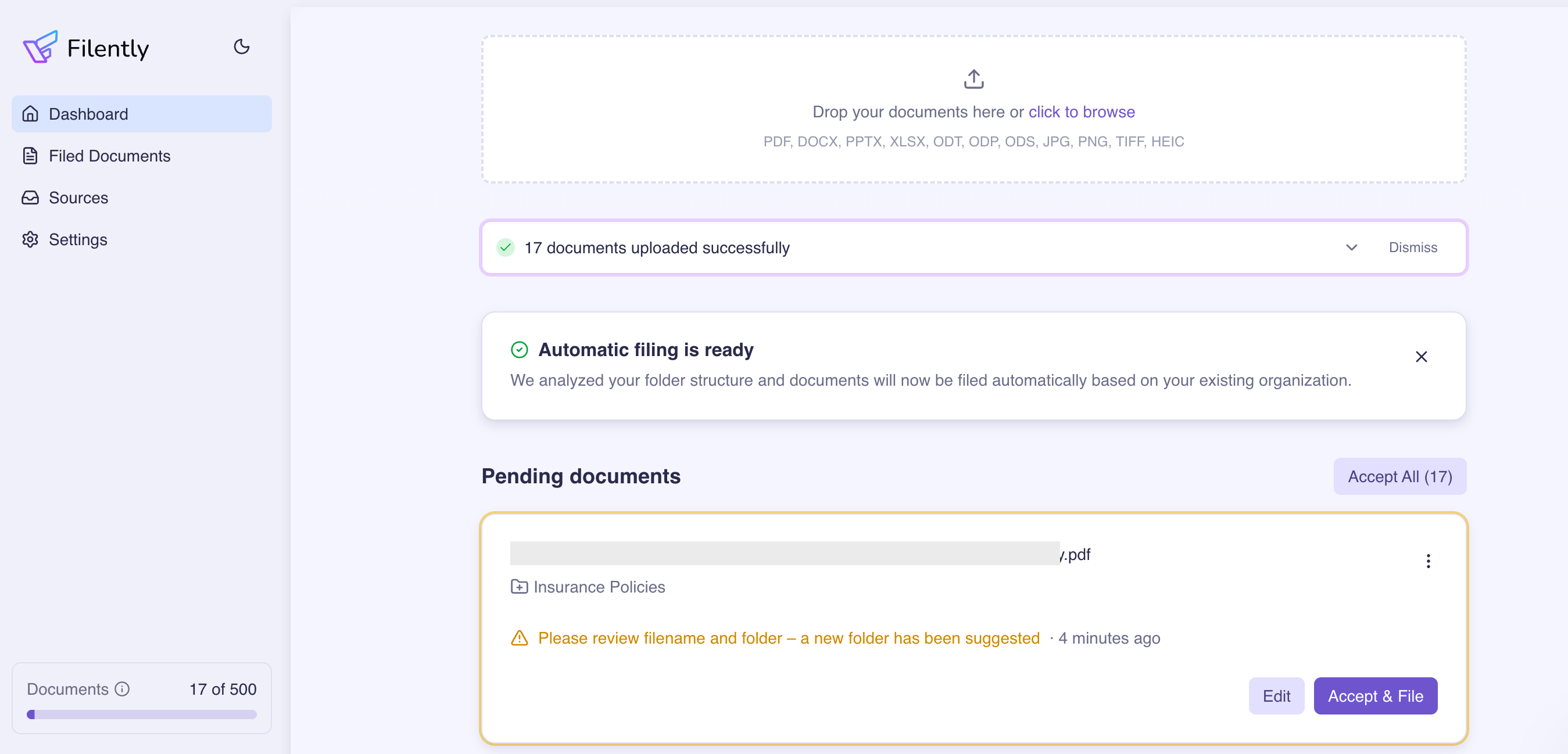
Drag and drop – Drag one or more files directly onto the dashboard. You will see a drop zone appear when you hover over the upload area.
Click to browse – Click the upload area to open your file browser and select files from your computer.
Inbox folder – When you connect your Google Drive, Filently automatically creates a _Filently Inbox folder. Any file that lands there gets picked up and processed automatically.
Filently supports a wide range of document formats:
PDF documents (.pdf)
Images – JPEG, PNG, HEIC, TIFF
Microsoft Office – Word (.docx, .doc), PowerPoint (.pptx, .ppt), Excel (.xlsx, .xls), and their template variants (.dotx, .potx, .xltx, .dot, .pot, .xlt)
OpenDocument – Text (.odt), Presentation (.odp), Spreadsheet (.ods)
RTF – Rich Text Format (.rtf)

Where Do Uploaded Files Go?
When you upload through Filently, files are sent directly to your Google Drive – not to Filently's servers. They are placed in a temporary upload folder within your filing location while Filently processes them.
What Happens After You Upload
Once a file is uploaded, Filently takes over:
Text extraction – Filently reads the document content using OCR (for scans and images) or direct text extraction (for digital PDFs and office files).
AI analysis – The AI identifies the document type, suggests a descriptive filename, and determines the best folder for it.
Review or auto-file – By default, every document lands in "Awaiting Review" status for you to approve or adjust the AI's suggestion. If you enable automatic filing in your settings, high-confidence suggestions are filed automatically instead.
You can watch the progress in real time on your dashboard. Each document shows its current status as it moves through these steps.
What is Next?
That covers the basics of getting started. From here, you can explore how to get the most out of Filently:
How to Upload Documents – Detailed guide on supported formats, batch uploads, and upload options.
How Filing Works – Learn about auto-filing, manual review, confidence levels, and how to adjust Filently's suggestions.
Still need help? Ask the team