Changelog

Follow new updates and improvements to Filently.

Add your own inbox folders, and choose which folders Filently leaves alone
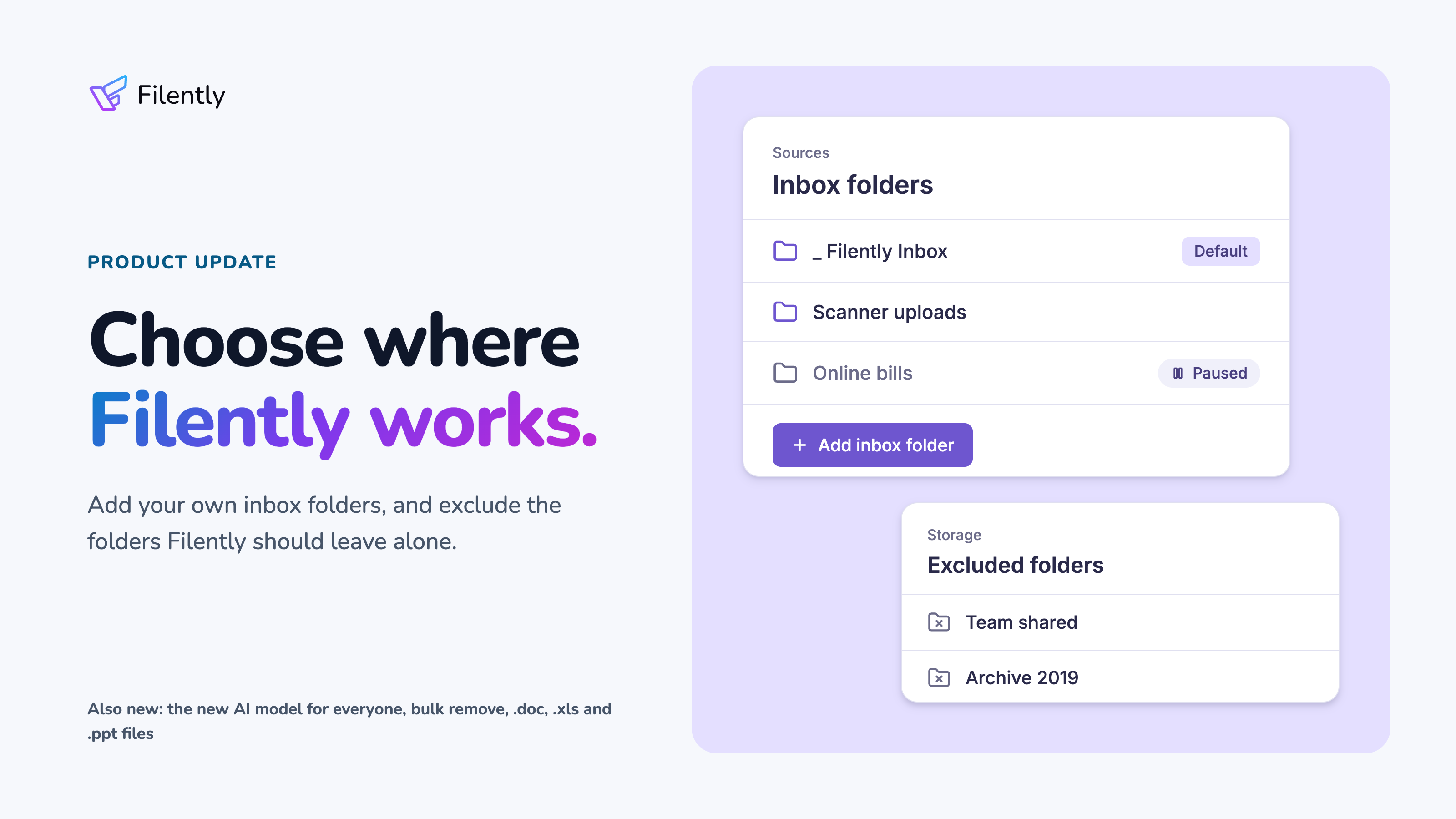
This update is about where Filently works in your Google Drive. You can now add more inbox folders, and exclude folders Filently should stay out of. Also new: the AI model from our last update now files for everyone, older Office files are read in full, and you can remove many documents at once.

Where Filently Works

Add more inbox folders
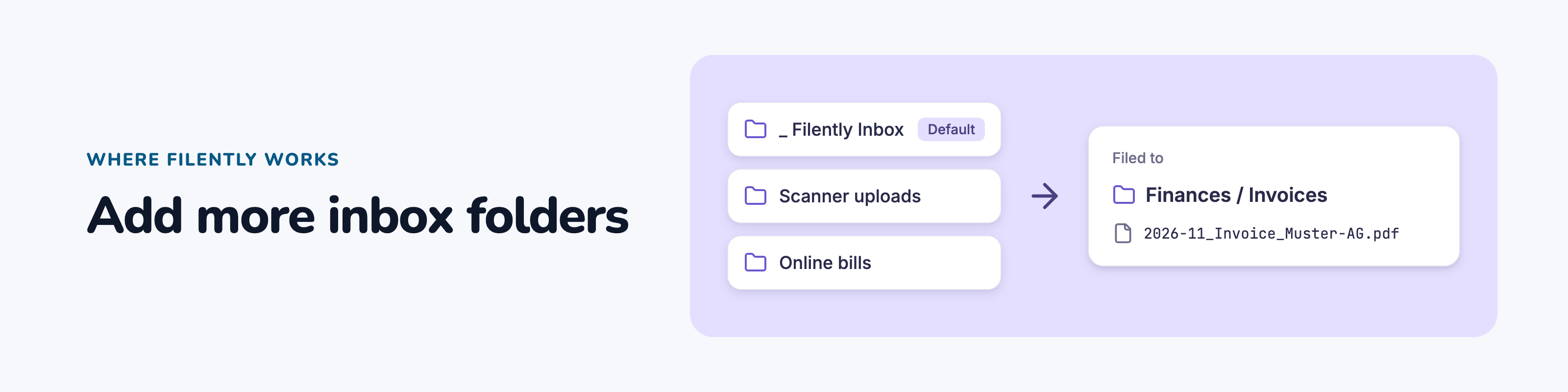
Do you have folders that fill up on their own, for example the folder your scanner or scanner app saves to, or one a service fills with your invoices? You can now add them as inbox folders on the Sources page. Filently then files their new files, just like the ones in _ Filently Inbox.

Personal includes 1 extra inbox folder. Professional, Founding Member and the free trial include 9. Inbox Folder Watching

Exclude folders
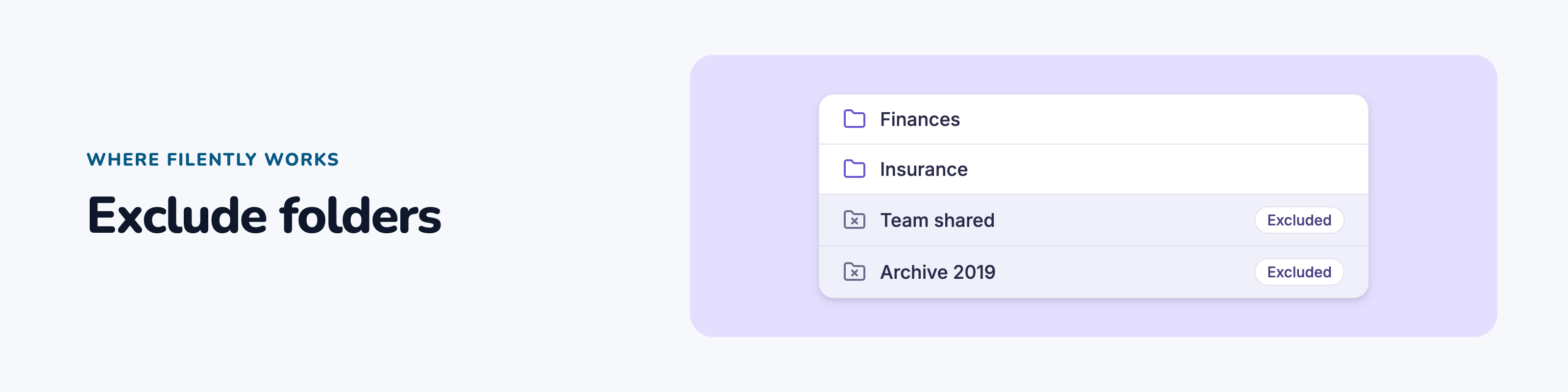
A folder you share with your team, an old archive: some folders in your filing location should stay untouched. You can now exclude them on the Storage page. Filently then never files into them or suggests them, and your files there stay exactly as they are. Available on every plan. Excluding Folders

New Features

The new AI model now files for everyone
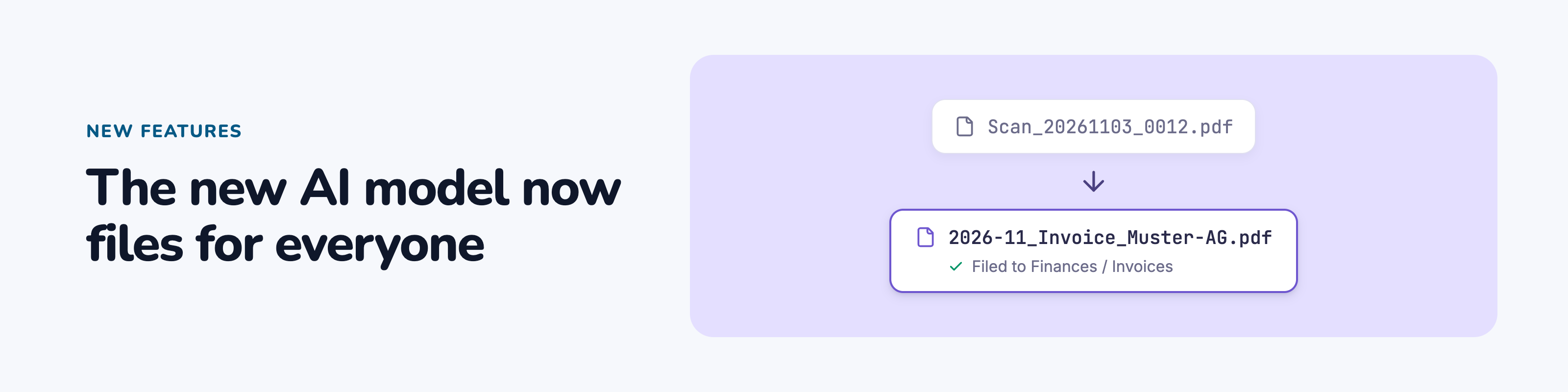
The AI model we started rolling out in our last update now files the documents of every account. You get its shorter, cleaner file names and faster filing without doing anything.

Remove many documents at once
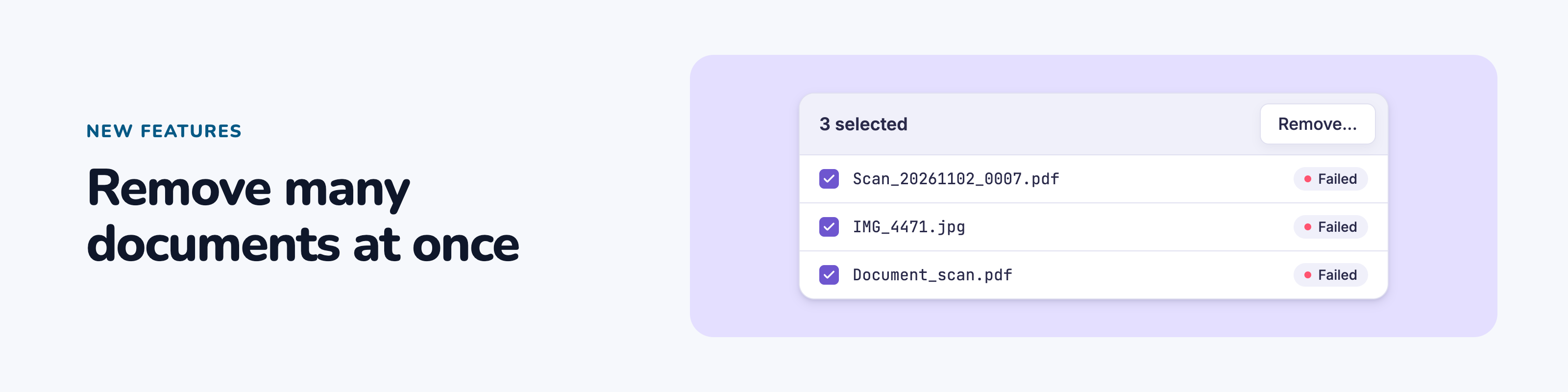
Select documents on the dashboard and choose Remove... in the selection bar, also for documents waiting for your review. Larger removals run in the background with a progress bar. To clean up failed documents, filter by Failed and remove them all at once. Filing and Moving Many Documents at Once

Older Word, Excel and PowerPoint files
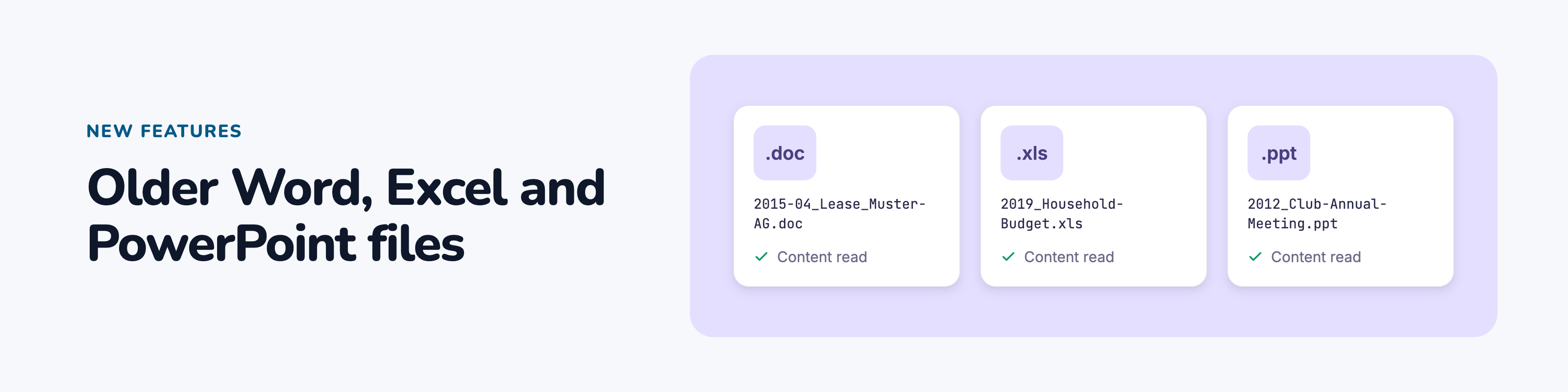
Filently now reads the content of .doc, .xls and .ppt files, so it names and files them by what is inside, not only by their filename.

Changing your filing location
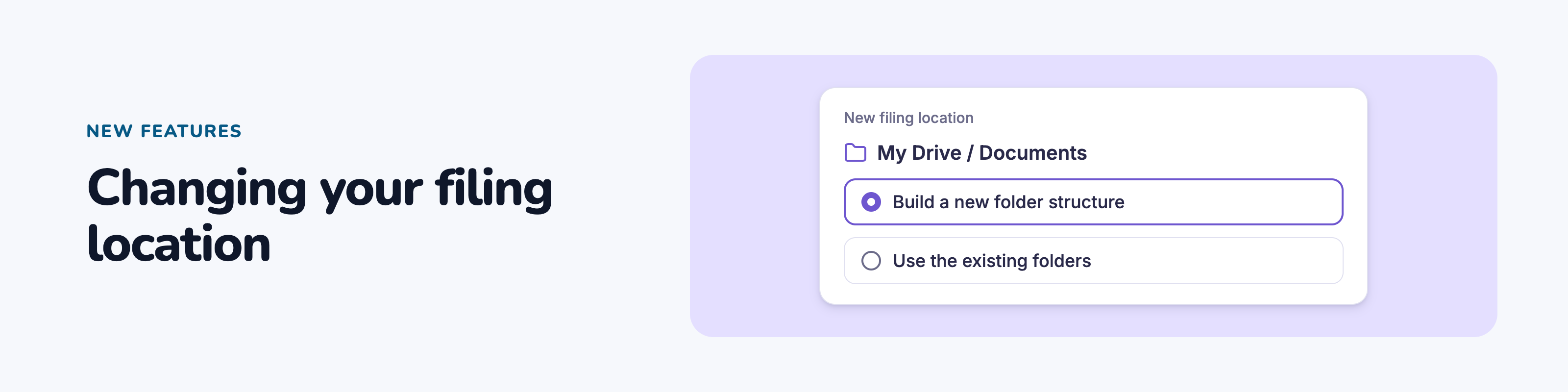
When you change your filing location, Filently now offers the same choices as during setup, including building a new folder structure. Documents waiting for your review get new suggestions for the new location. Managing Your Storage Connection

Bug Fixes

  • Folder names in a different spelling: Filently sometimes created a folder such as "invoices" next to your existing "Invoices". It now uses the folder you already have.

  • Files in the Google Drive trash: accepting a suggestion for a trashed file now also takes it out of the trash.

  • Restricted Google accounts: if your Workspace administrator or Google restricts Filently's access, Filently now tells you why and what to do.
NewImprovedFixed

A new AI model for filing, and smarter folder suggestions

This week is all about filing quality. We started rolling out a new AI model that names your files better and works faster, and we made Filently much better at understanding your folder structure. Shared drives work better too, and most PDFs are now processed faster.

Better filing

A new AI model for filing

Filently now files with a new, latest-generation AI model. In our tests, it did best exactly where filing is hardest: on the documents our users had to correct by hand, it found the right folder more often than the model before. And it writes noticeably better file names:

  • It keeps the language of your documents and folders more consistently.

  • It writes shorter, cleaner names.

  • It picks the right date more reliably.

  • It is faster.

We are rolling it out gradually, so we can watch the results closely. You do not need to do anything. If you can't wait, write to us through the chat in the app and we switch your account right away.

πŸ—£οΈ Tell us how it files for you. If a suggestion or a name surprises you, good or bad, we want to hear it. Your feedback decides when the new model becomes the default for everyone.

Smarter folder suggestions

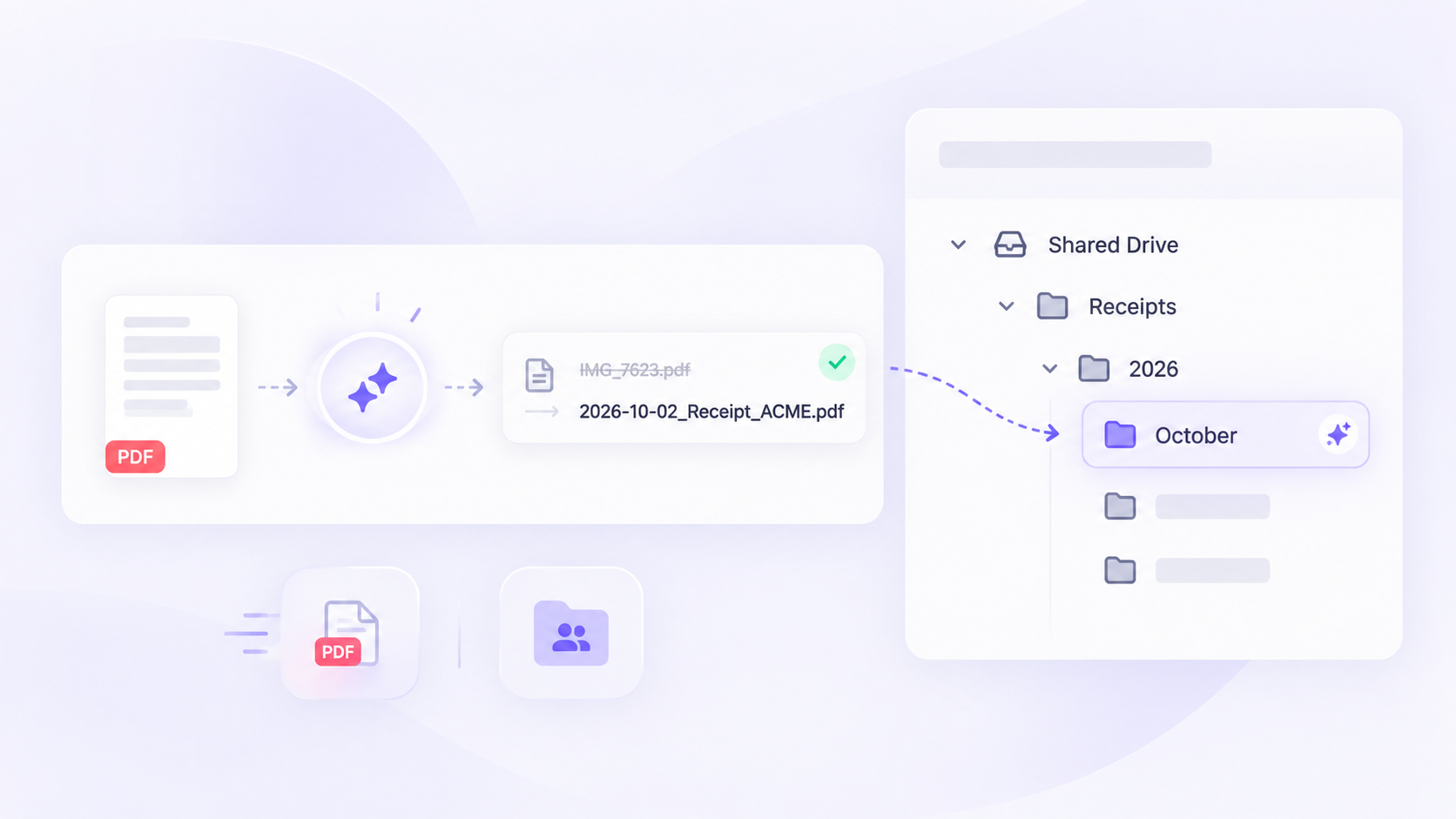
Filently now understands your folder structure much better when it picks where a document goes, also in large and deeply nested trees. The biggest effect: when a document needs a new folder for the new month or year, such as October inside Receipts/2026, Filently now suggests it and files the document automatically. Before, these documents often waited in review, especially in the first days of a month.

Folders with a slash in their name, such as β€œ2024/2025”, are now understood as one folder too.

Also New

Faster processing for most PDFs

PDFs created on a computer, such as invoices and statements you download, are now processed faster. Scanned documents work as before.

Bug Fixes

  • Filing location moved to another drive: when you moved your filing location folder, for example from My Drive into a shared drive, Filently treated it as deleted and stopped noticing new files. It now follows the folder to its new drive.

  • Automatic filing after a reconnect: when Google stopped Filently's access and you reconnected Google Drive, your inbox switched to manual approval and stayed there. Reconnecting now keeps the access you had given, so automatic filing continues and waiting files are filed. If you leave out the wider permission on Google's screen, Filently tells you which one is missing.

ImprovedFixed

Your inbox sorts itself

Last release was about controlling what reaches you. This one takes care of what happens next: your inbox folder in Google Drive now keeps itself organized, and a file that is too large to analyze gets filed anyway instead of being turned away.

Your files stay in your Google Drive

Filently works directly with the files in your Google Drive. Your files are never moved into separate storage.

When a new file comes into Filently, it first lands in your _ Filently Inbox. Think of it as a waiting room: the file stays there while Filently processes it and gets it ready for its final destination.

Filently analyzes the file and suggests a name and destination. You can review and approve that suggestion in the Filently dashboard. If you have automatic filing enabled, Filently can take care of the filing for you.

Files can enter this waiting room in different ways: you can upload them through the Filently app, forward them by email, or drop them directly into the _ Filently Inbox in your Google Drive.

New Features

Your inbox folder sorts itself

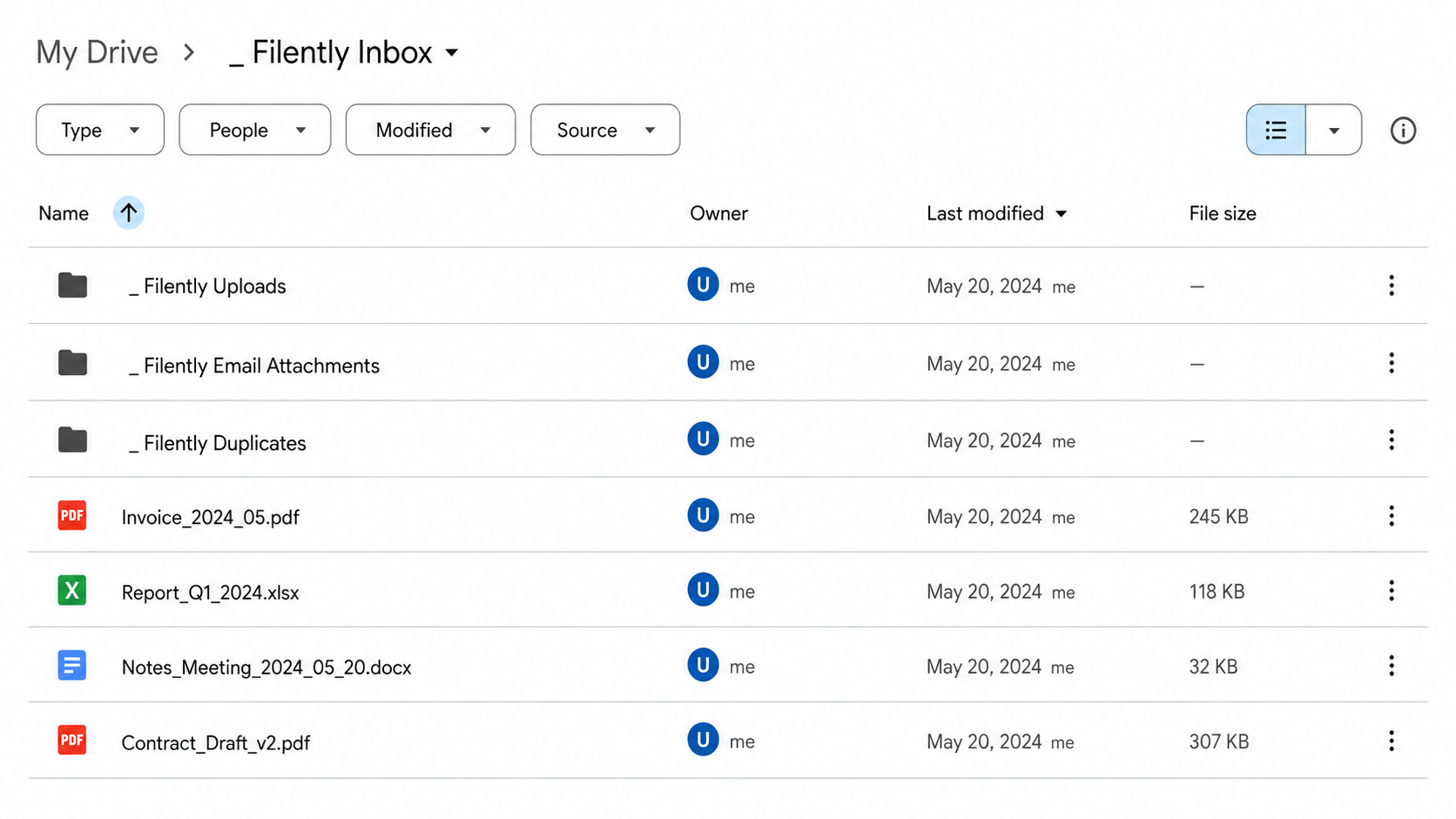
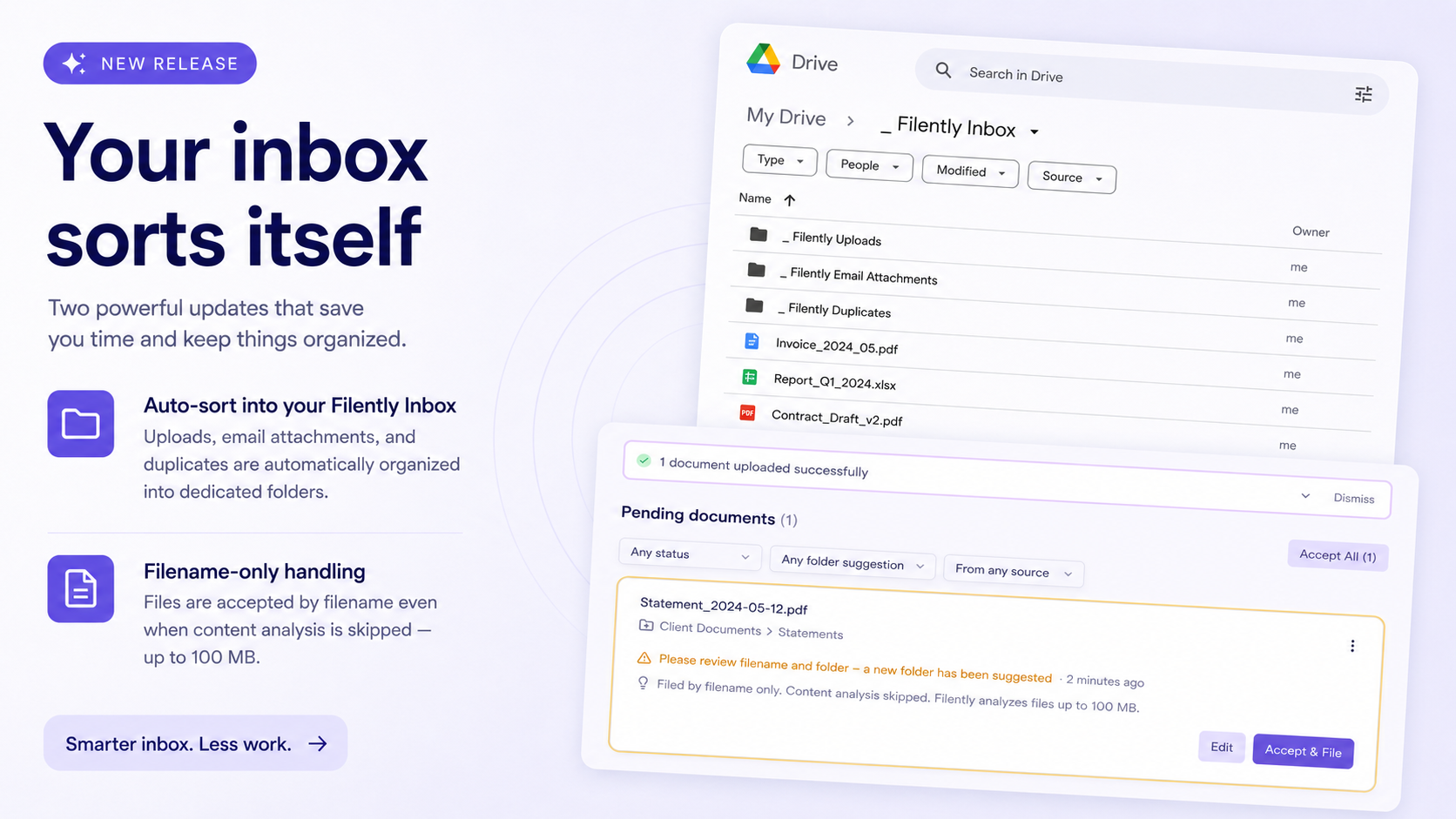
With files coming in from different places, the inbox can get busy. So we’ve added dedicated subfolders to keep things organized while files are waiting:

  • _ Filently Uploads holds the files you upload in the app.

  • _ Filently Email Attachments holds the attachments from your forwarded emails.

  • _ Filently Duplicates is where a duplicate goes the moment Filently spots it, so it no longer sits next to files that are still waiting.

The root of your inbox stays yours: the only loose files in it are the ones you put there. Dropping a file into one of the subfolders works too, Filently picks it up just like the root. And when you revert a filing, the document goes back to the exact subfolder it came from. Inbox Folder Watching Email Forwarding

Too big to analyze no longer means too big to file

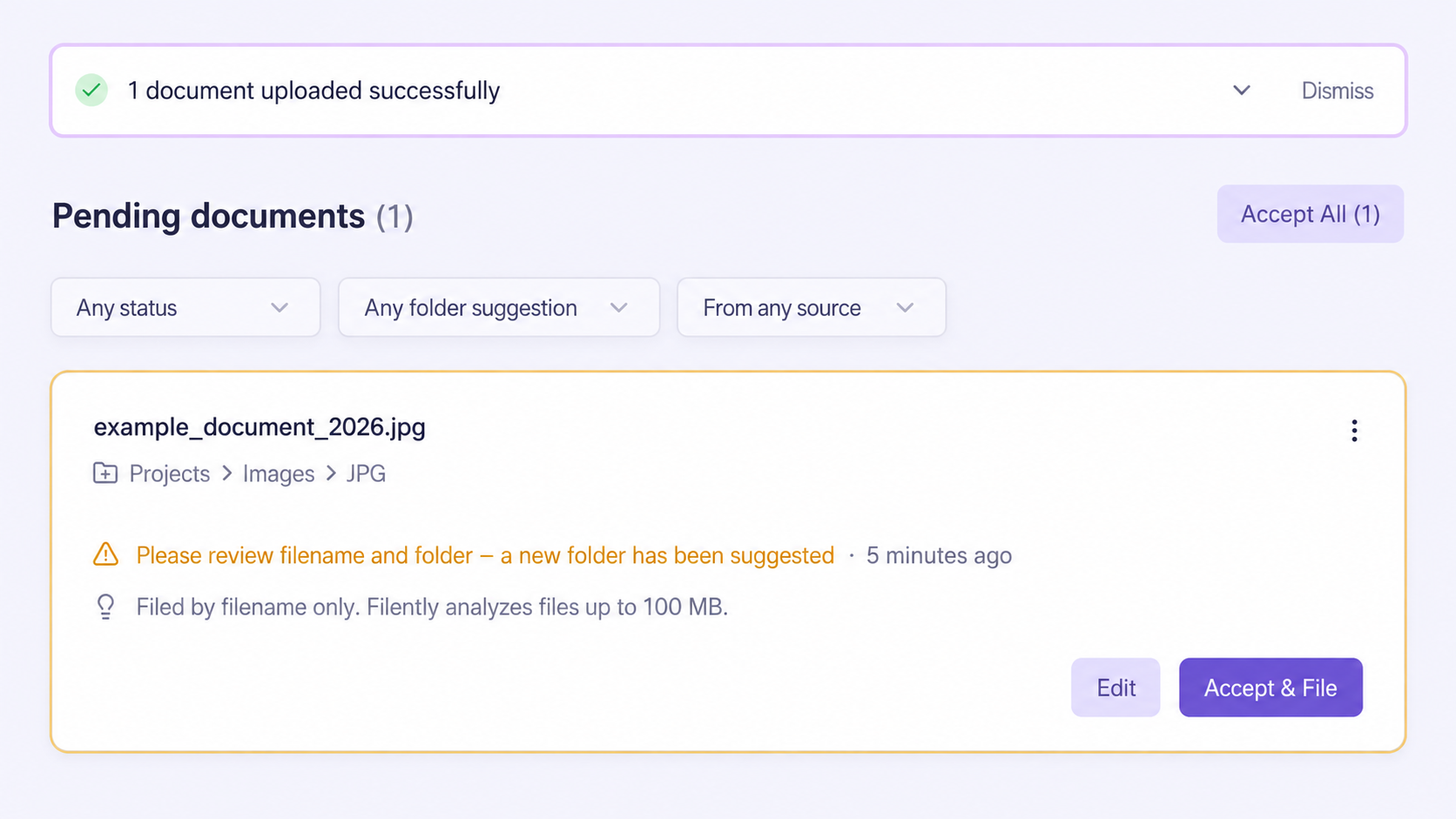
Until now, a file over your plan's size limit was simply rejected: the upload stopped with an error, and an oversized file from your inbox or email went nowhere. That is over. Filently now takes a file of any size and files it based on its filename; only the content analysis is skipped.

The document card tells you when that happened. On a plan that analyzes files up to 50 MB, a larger file shows a note with an upgrade link, because Professional analyzes files up to 100 MB. Above 100 MB no plan reads the content, and the card says so, but the file still gets named and filed. Supported File Types and Limits

Bug Fixes

  • Choosing a folder: the folder picker used to announce "Perfect! This folder is empty" for folders that contain files, just no subfolders. It now explains that it lists folders, not files, so a full folder no longer looks empty.

ImprovedFixed

Earlier updates